
Blog
WordPress Maintenance for Non-Technical Owners
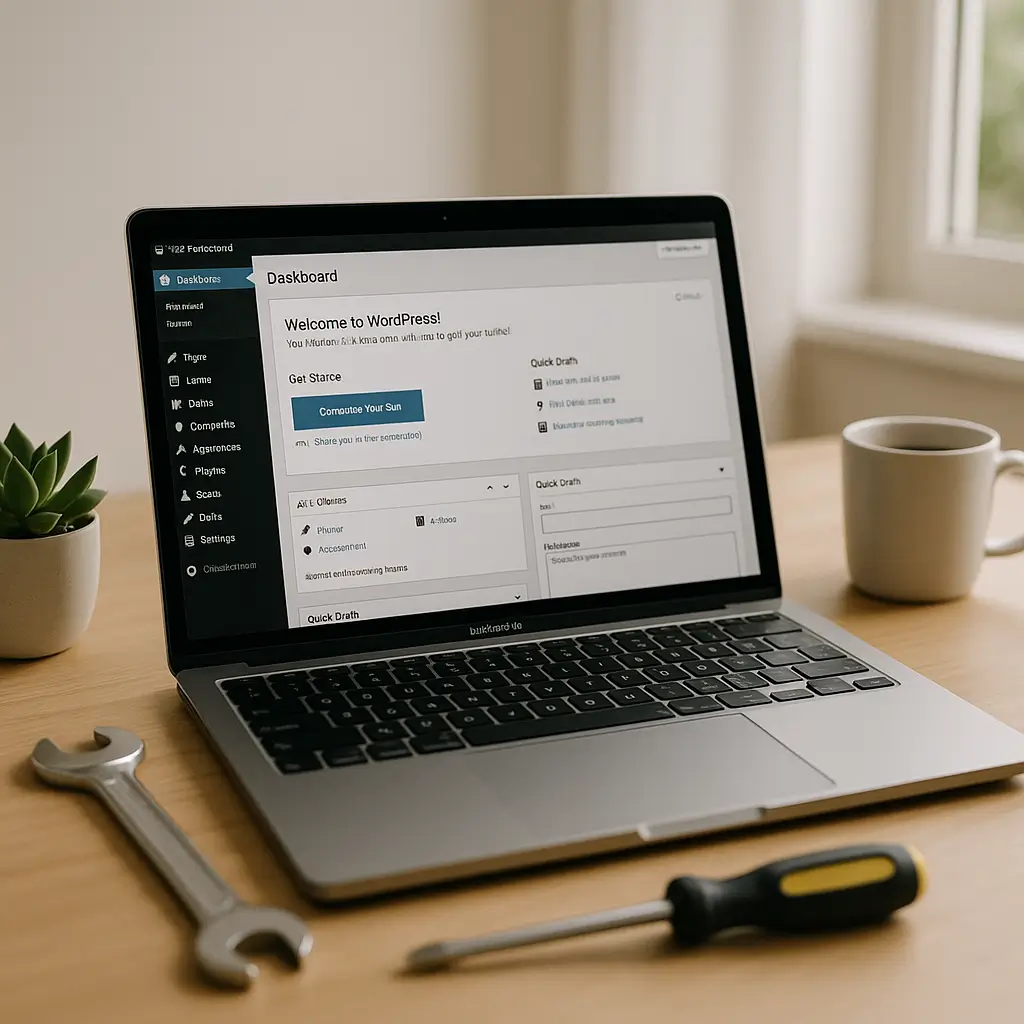 Running a WordPress site when you're not technical feels like owning a car when you're not a mechanic. You know it needs maintenance, but what exactly? And how often? And what happens if you skip it?
Here's the thing: WordPress maintenance isn't just about keeping your site from breaking. It's about protecting your business, your customers, and your reputation. Let me break down what actually matters, what you can handle yourself, and when you need to call in the pros.
Running a WordPress site when you're not technical feels like owning a car when you're not a mechanic. You know it needs maintenance, but what exactly? And how often? And what happens if you skip it?
Here's the thing: WordPress maintenance isn't just about keeping your site from breaking. It's about protecting your business, your customers, and your reputation. Let me break down what actually matters, what you can handle yourself, and when you need to call in the pros.
Why WordPress Sites Break (And It's Not Your Fault)
WordPress runs on multiple moving parts that all need to work together. You've got WordPress itself, your theme, a handful of plugins, your hosting environment, and the PHP programming language underneath it all. When any of these pieces update, they can stop playing nicely with each other.
Think of it like updating your phone's operating system. Sometimes apps stop working until their developers release compatibility updates. Same deal with WordPress, except your business depends on it working 24/7.
The kicker? These updates happen constantly. WordPress releases updates every few weeks. Plugin developers push fixes whenever they find bugs. PHP versions change. Security vulnerabilities get discovered and patched.
Ignoring updates isn't an option either. Outdated plugins are the number one way hackers get in. It's not about if your site will have problems—it's about when.
The Non-Negotiable Maintenance Tasks
Some maintenance tasks are like brushing your teeth—skip them and you'll eventually regret it. Here's what absolutely needs to happen:
Security Updates
WordPress security updates should be applied immediately. These patches fix known vulnerabilities that hackers actively exploit. Most hosting providers can enable automatic security updates for WordPress core, which I strongly recommend.
Plugin security updates are trickier. You can't just auto-update everything because plugins can break your site. Each update needs testing, especially for critical plugins like WooCommerce, contact forms, or booking systems.
Regular Backups
How often should you back up WordPress? Daily for busy sites, weekly for others. But here's what most people miss: backups are worthless if you can't restore them quickly.
Test your restore process at least quarterly. I've seen too many businesses discover their backups were corrupted or incomplete only after disaster struck. If you're running an online store, consider real-time backups during business hours.
Uptime Monitoring
Your site could be down right now and you wouldn't know until a customer complains. Uptime monitoring checks your site every few minutes and alerts you immediately if something's wrong.
For restaurants with online ordering or medical practices with appointment booking, even 30 minutes of downtime means lost revenue and frustrated customers. The impact goes beyond immediate losses—customers often don't come back.
Performance Monitoring
A slow site is almost as bad as a broken one. Google considers site speed when ranking search results, and visitors bail after waiting just 3 seconds. Your site might load fast for you (because it's cached in your browser) while crawling for first-time visitors.
Regular performance checks catch issues like:
- Database bloat from spam comments or post revisions
- Plugins that hog resources
- Images that need optimization
- Hosting limitations you've outgrown
What You Can (Realistically) Do Yourself
Let's be honest about what non-technical owners can actually handle. I've watched too many business owners waste hours on tasks that take professionals minutes.
Content Updates
Adding blog posts, updating your hours, changing prices—this is what WordPress was built for. The editor is designed for non-technical users. Spend your time here where your expertise matters most.
Pro tip: Schedule content updates for low-traffic times. I've seen restaurant owners accidentally break their sites during Friday dinner rush while updating menus.
Basic Plugin Management
You can safely update plugins that:
- Have minor version changes (like 2.1 to 2.2)
- Don't handle payments or critical functions
- Come from reputable developers with good track records
Always update one plugin at a time and check your site after each update. If something breaks, you'll know exactly which plugin caused it.
Comment Moderation
Spam comments aren't just annoying—they bloat your database and can hurt your search rankings. Check and clean out spam weekly. Consider using Akismet or similar anti-spam plugins to reduce the load.
What You Should Never DIY
Some maintenance tasks seem simple but can catastrophically break your site. Here's where you need professional help:
Major Updates
Updating WordPress from version 5.x to 6.x? Upgrading WooCommerce? These major updates often require theme and plugin compatibility checks, PHP version updates, and database migrations.
I've seen DIY major updates wipe out custom code, break checkout processes, and even lose customer data. The few hundred dollars you save isn't worth the risk.
Security Cleanup
Think your site might be hacked? Here's how to tell. But if you find malware, stop. Don't try to clean it yourself.
Hackers hide backdoors throughout your site. Miss even one and they'll be back tomorrow. Professional malware removal includes scanning, cleaning, patching vulnerabilities, and monitoring for reinfection.
Performance Optimization
Your site's slow. You Google "speed up WordPress" and find 50 different solutions. Caching plugins, CDNs, image optimization, database cleanup, minification...
Here's the problem: applying the wrong optimization can make things worse. That caching plugin that worked great for someone else might break your contact forms. Performance optimization requires understanding your specific bottlenecks.
The Hidden Costs of DIY Maintenance
Most business owners think DIY maintenance saves money. Let's do the real math:
Say you spend 4 hours monthly on updates, backups, and troubleshooting. If your time is worth $100/hour (and if you're running a business, it probably is), that's $400 in hidden costs. Plus:
- Stress when something breaks at 9 PM on a Friday
- Lost revenue during downtime
- Customers who leave and never come back
- SEO rankings that tank from slow performance
- The big cleanup bill when you eventually need professional help
Compare that to professional maintenance plans starting around $49/month. The math usually favors outsourcing, especially when you factor in peace of mind.
Red Flags Your Site Needs Immediate Attention
Don't wait for a complete meltdown. These warning signs mean you need help now:
Security Red Flags
- Strange admin users you didn't create
- Files you don't recognize in your uploads folder
- Suspicious redirects to other websites
- Google warning visitors your site is dangerous
- Your hosting provider suspended your account
Performance Red Flags
- Pages taking more than 5 seconds to load
- Admin dashboard barely responsive
- Customers complaining about checkout errors
- Forms that sometimes work, sometimes don't
- Random white screens or error messages
Business Impact Red Flags
- Dropping search rankings despite good content
- Increasing bounce rates in your analytics
- Customer complaints about site usability
- Lost form submissions or orders
- Incompatibility with mobile devices
Choosing the Right Maintenance Approach
Every business has different needs. Here's how to choose your maintenance strategy:
DIY Might Work If:
- Your site is basically a digital brochure
- You have fewer than 5 plugins
- You don't process payments or sensitive data
- You enjoy learning technical skills
- Downtime won't cost you customers
You Need Basic Professional Maintenance If:
- Your site generates leads or sales
- You run critical plugins (booking, e-commerce, forms)
- You value your time more than the monthly cost
- Security and uptime matter to your reputation
- You want to focus on running your business
You Need Comprehensive Maintenance If:
- Your website is mission-critical to revenue
- You handle sensitive customer data
- You need PIPEDA compliance
- Performance directly impacts conversions
- You run complex functionality (membership sites, course platforms, multi-vendor stores)
What Professional Maintenance Actually Includes
Not all maintenance plans are created equal. Here's what to look for:
The Basics (Every Plan Should Include)
- Daily automated backups with offsite storage
- Weekly plugin and theme updates with testing
- 24/7 uptime monitoring with instant alerts
- Security scanning and firewall protection
- Monthly performance reports
The Important Extras
- Staging site for testing updates
- Priority support when things break
- Malware cleanup if hacked (not just detection)
- Performance optimization
- Regular database optimization
The Premium Features
- Real-time backups for e-commerce
- Advanced security hardening
- Content updates and minor changes
- Plugin license management
- Detailed analytics and recommendations
Making the Transition to Professional Maintenance
Decided to hire help? Here's how to make the transition smooth:
Step 1: Document Everything
List all your plugins, their purposes, and any custom code. Note which features are critical to your business. Share your current backup location and schedule.
Step 2: Choose the Right Provider
Look for providers who specialize in your industry. A law firm has different needs than a restaurant. Ask about their security protocols, response times, and experience with your specific plugins.
Step 3: Plan the Handoff
Good providers will audit your site first, identifying existing issues and creating a cleanup plan. Expect some initial work to bring your site up to standards before regular maintenance begins.
Step 4: Establish Communication
Decide how you'll handle content updates, what constitutes an emergency, and how you'll receive reports. Monthly summary emails work for most businesses.
The WordPress Maintenance Reality Check
Here's what it comes down to: WordPress maintenance is like insurance. It feels unnecessary until you need it, then you wish you'd had better coverage.
You can absolutely maintain your own WordPress site. People do it every day. But ask yourself: is that the best use of your time and expertise? Would you rather spend Saturday morning updating plugins or growing your business?
For most business owners, professional maintenance pays for itself through prevented disasters, saved time, and improved performance. The peace of mind alone—knowing experts are watching your site 24/7—lets you focus on what you do best.
Ready to stop worrying about WordPress maintenance? Ambrite's maintenance plans start at just $49/month and include everything you need to keep your site secure, fast, and always online. Get in touch to discuss which plan fits your business.
This article was written with the help of AI and reviewed by the Ambrite team. Pricing, features, and technical details may change — always verify with official sources before making decisions.
Was this article useful?
Related Articles
Your WordPress site loads in 8 seconds on mobile. Meanwhile, your competitor's site loads in 2...
Running a restaurant in 2026 means juggling a thousand things at once. Your WordPress site...
Your WordPress site has 47 active plugins and takes 8 seconds to load. Sound familiar? Plugin...
Your real estate website is more than just a digital business card—it's a 24/7 sales machine...
Your staff page hasn't been updated since Jessica left in 2022, and your services page still...
