
Blog
WooCommerce Plugin Update Best Practices
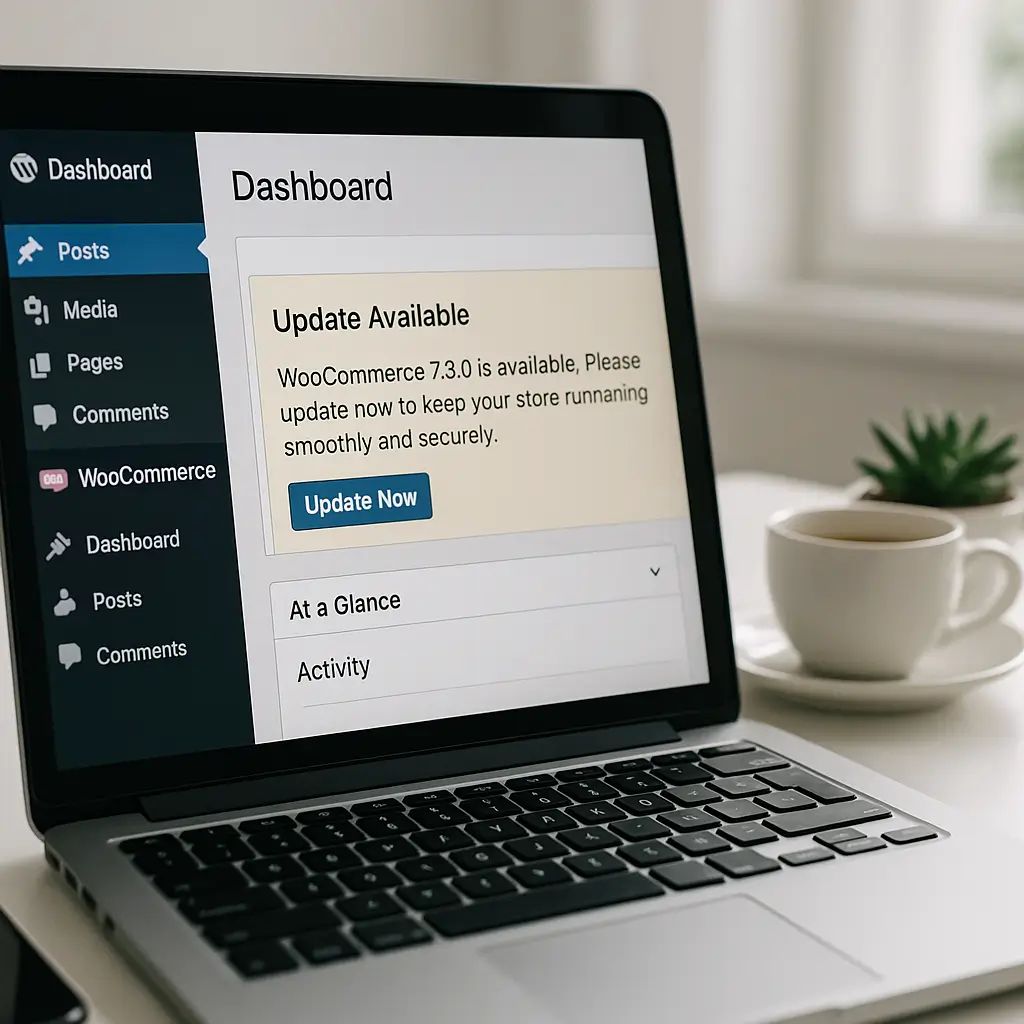 Updating WooCommerce plugins feels like defusing a bomb sometimes. One wrong move and your checkout breaks, inventory sync fails, or worse—your entire store goes down during peak shopping hours.
We've seen it happen too many times. A store owner updates a payment gateway plugin at 2 PM on a Saturday, and suddenly no one can complete purchases. Or they update a shipping plugin and all their Canada Post rates disappear.
Here's how to update WooCommerce plugins without breaking your store.
Updating WooCommerce plugins feels like defusing a bomb sometimes. One wrong move and your checkout breaks, inventory sync fails, or worse—your entire store goes down during peak shopping hours.
We've seen it happen too many times. A store owner updates a payment gateway plugin at 2 PM on a Saturday, and suddenly no one can complete purchases. Or they update a shipping plugin and all their Canada Post rates disappear.
Here's how to update WooCommerce plugins without breaking your store.
The Golden Rule: Never Update on Production First
This sounds obvious, but you'd be amazed how many store owners click "update all" on their live site and hope for the best.
The smart approach? Test every update on a staging site first. Yes, it takes an extra 20 minutes. But it's better than losing 2 hours of sales while frantically rolling back updates.
If you don't have a staging site, create one. Most quality hosting providers include staging functionality. It's basically a clone of your live site where you can break things without consequences.
Which Plugins Need Extra Caution
Not all WooCommerce plugins are created equal. Some are riskier to update than others.
Payment Gateway Plugins
These are your highest-risk updates. Payment processors like Moneris, PayPal, or Stripe can change their API requirements, and plugin updates often reflect these changes.
Always check the plugin changelog before updating. Look for phrases like "breaking changes" or "requires reconfiguration." If you see these, schedule the update for your slowest traffic period.
Shipping Plugins
Shipping calculators, especially those connecting to Canada Post or other carriers, can break in subtle ways. The plugin might update fine, but suddenly your shipping rates are wrong or missing.
After updating any shipping plugin, place a test order immediately. Check that rates calculate correctly for different provinces and postal codes.
Inventory Management Plugins
If you sync inventory with QuickBooks, a POS system, or dropshipping suppliers, these updates need careful handling. Database schema changes can break synchronization, leaving you overselling products or showing incorrect stock levels.
Page Builder Extensions
Using Elementor or Divi to customize your product pages? Their WooCommerce add-ons can cause display issues when updated. Your beautifully designed product gallery might suddenly look broken.
Pre-Update Checklist
Before clicking that update button, run through this checklist:
- Check plugin compatibility - Verify the new version works with your current WooCommerce and WordPress versions
- Read the changelog - Look for breaking changes, new requirements, or major feature overhauls
- Backup everything - Not just your database, but your entire site including uploads and plugin files
- Note your current settings - Screenshot payment gateway configurations, tax settings, and shipping zones
- Clear your calendar - Don't update 10 minutes before a meeting. Give yourself buffer time
- Prepare rollback plan - Know how to restore from backup if things go wrong
That last point is crucial. Proper WooCommerce backups include your database, files, and—importantly—your wp-config.php file with database credentials.
The Safe Update Process
Here's the step-by-step process we recommend to all our WooCommerce clients:
Step 1: Update on Staging First
Push all updates to your staging site. This includes WordPress core, WooCommerce itself, and all related plugins. Don't cherry-pick—update everything that needs updating.
Step 2: Test Critical Paths
On staging, test these specific workflows:
- Add a product to cart
- Apply a coupon code
- Calculate shipping for different addresses
- Complete checkout with each payment method
- Check order confirmation emails
- Verify inventory decrements properly
- Test any custom functionality
Step 3: Check for Visual Breaks
Open your site on mobile, tablet, and desktop. Check product grids, single product pages, cart, and checkout. Sometimes updates change CSS classes and break layouts.
Step 4: Monitor Error Logs
Check your PHP error logs after updating. Look for deprecation warnings or fatal errors. Even if the site looks fine, underlying errors might cause problems later.
Step 5: Schedule the Live Update
Choose your timing wisely. For most Canadian stores, early morning (5-7 AM in your primary timezone) sees the lowest traffic. Avoid updating during lunch hours, evenings, or weekends when shopping peaks.
Pro tip: Set up a maintenance mode page before updating. It's better to show "We'll be back in 10 minutes" than to have customers see broken checkout pages.
Common Update Problems and Solutions
Even with careful planning, things can go wrong. Here are the most common issues we see:
White Screen of Death
Your site shows a blank white page after updating. This usually means a PHP fatal error. Check your error logs immediately. Often it's a plugin conflict or memory limit issue.
Quick fix: Access your site via FTP and rename the problematic plugin folder to deactivate it.
Checkout Won't Complete
Customers can add to cart but get errors at checkout. This often happens with payment gateway updates. The plugin might need reauthorization with your payment processor.
Check your payment settings and re-enter API credentials if needed. Test with a small transaction immediately.
Missing Shipping Options
Shipping methods disappear after updating. This happens when shipping plugins change their zone configurations or API connections timeout.
Navigate to WooCommerce > Settings > Shipping and verify all zones and methods are still configured. Re-save settings even if they look correct.
Plugin Conflicts
Plugin conflicts often surface after updates. The updated plugin might not play nice with another extension you're using.
Deactivate all plugins except WooCommerce and the problem plugin. If it works, reactivate other plugins one by one to identify the conflict.
When NOT to Update
Sometimes the best decision is to wait. Here's when to hold off on updates:
- Major sale events - Never update during Black Friday, Boxing Day, or your own promotions
- First week of release - Let other stores be guinea pigs. Wait for the .1 or .2 patch release
- Without staging tests - If you can't test first, don't risk it on production
- End of business day - Don't update at 4:30 PM Friday unless you enjoy working weekends
- Multiple major updates - If WooCommerce, WordPress, and five plugins all have major updates, do them incrementally
Specific Considerations for Canadian Stores
Running a Canadian WooCommerce store adds some unique considerations for updates:
Tax Plugin Updates
Canadian tax calculations are complex with GST, PST, HST varying by province. When updating tax plugins, verify rates still calculate correctly for each province. A misconfigured tax plugin can mean collecting too much or too little tax.
Bilingual Functionality
Using WPML or Polylang for French/English support? These plugins need careful coordination when updating. Update your translation plugin first, then WooCommerce, then any extensions. Test both language versions thoroughly.
PIPEDA Compliance
Privacy-related plugins need special attention. Updates might change how customer data is handled. Ensure any updates maintain your PIPEDA compliance, especially around consent mechanisms and data storage.
Building an Update Schedule
Rather than updating randomly when you see notifications, create a schedule:
Weekly: Security Updates Only
Check for security patches every Monday morning. These get priority and should be applied quickly after testing.
Monthly: Feature Updates
Schedule non-critical updates for the first Tuesday of each month. This gives you consistency and prevents update fatigue.
Quarterly: Major Updates
Plan major WooCommerce or WordPress updates quarterly. These need more testing time and often require theme or plugin compatibility updates too.
Consider professional maintenance: If managing updates feels overwhelming, professional maintenance services handle updates systematically with proper testing and rollback procedures.
Emergency Rollback Procedures
Despite your best efforts, sometimes an update breaks your store. Here's your emergency response plan:
- Put your site in maintenance mode immediately
- Restore from your pre-update backup
- If you can't restore quickly, manually downgrade the problem plugin via FTP
- Clear all caches (hosting cache, CDN cache, browser cache)
- Test critical functionality before removing maintenance mode
- Document what went wrong for future reference
Keep your hosting support number handy. Good hosts can often restore backups faster than you can do it yourself.
Plugin Update Red Flags
Watch for these warning signs in plugin update notices:
- "Complete rewrite" or "rebuilt from the ground up" - Major architectural changes mean higher risk
- "New minimum PHP version required" - Make sure your hosting meets requirements
- "Legacy features removed" - Check if you're using any of those features
- "Database migration required" - These updates need extra backup precautions
- No updates for 6+ months, then sudden major update - Proceed with extreme caution
Testing Automation Options
For larger stores, consider automated testing tools. Services like Ghost Inspector or Selenium can run through your checkout process automatically after updates. They'll alert you if anything breaks.
This doesn't replace manual testing but adds an extra safety layer, especially for stores with complex checkout flows or multiple payment options.
Long-Term Plugin Strategy
Beyond individual updates, think strategically about your plugin ecosystem:
Audit Annually
Every January, audit all your WooCommerce plugins. Remove ones you're not actively using. Plugin bloat makes updates harder and increases security risks.
Standardize Where Possible
If you're using three different plugins for similar features, consider consolidating. Fewer plugins mean fewer updates and fewer potential conflicts.
Track Update History
Keep a simple spreadsheet logging what you updated and when. Include notes about any issues. This history helps identify problematic plugins over time.
Budget for Replacements
Sometimes a plugin becomes too problematic to keep updating. Budget for occasionally replacing troublesome plugins with better-maintained alternatives.
WooCommerce powers serious businesses. Your update strategy should reflect that seriousness. Take it slow, test thoroughly, and always have a rollback plan. Your future self (and your customers) will thank you when your store keeps running smoothly through every update cycle.
This article was written with the help of AI and reviewed by the Ambrite team. Pricing, features, and technical details may change — always verify with official sources before making decisions.
Was this article useful?
Related Articles
Setting up Moneris on your WooCommerce store feels like wrestling with government...
Running a Canadian e-commerce store means dealing with Canada Post shipping rates—and if you've...
Your WooCommerce store is hemorrhaging money. Every second it takes to load costs you...
Your WooCommerce store crashed yesterday. The database is corrupted. Your last backup? Three...
Your WooCommerce store just notified you about a new update. Should you click that update...
