
Blog
How to Change Web Hosts Without Losing Your Business Email
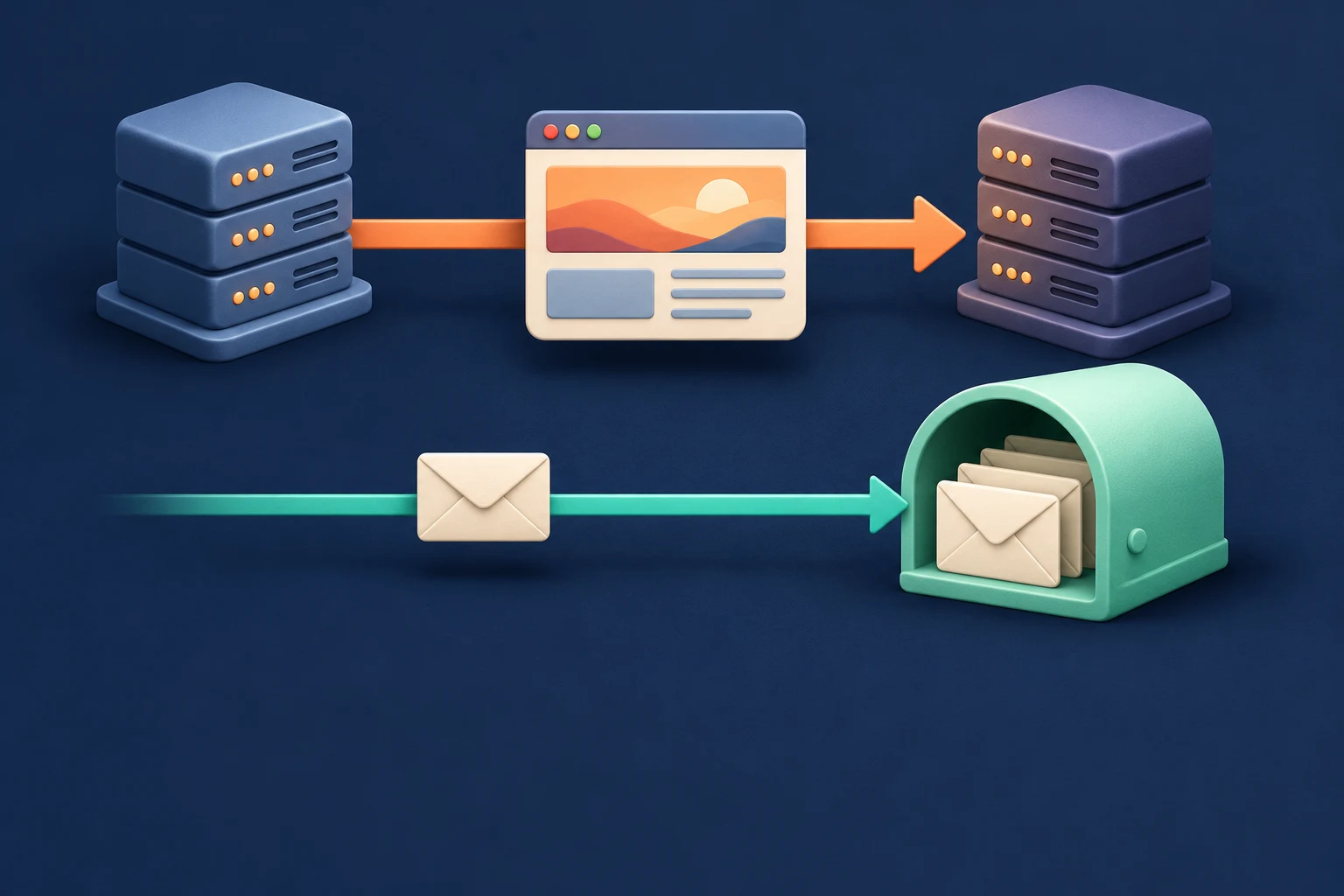
Your new website can load perfectly while customer emails quietly bounce back to their senders. That usually happens when a hosting move changes email settings, removes a mailbox, or shuts down the old service before the transfer is finished.
The safest approach is to treat your website and business email as two separate jobs, even if you currently pay for them together. Work out where your mail lives, protect the messages already there, and change only the settings needed for the move.
First, decide whether your email actually needs to move
Changing web hosts does not automatically mean changing email providers. Your domain registration, website hosting, DNS management, and email hosting can all be handled by different companies.
Before making changes, identify these four things:
- Domain registrar: the company where your domain is registered and renewed.
- DNS provider: the service managing the records that direct website traffic and email.
- Web host: the server holding your WordPress files and database.
- Email provider: the service storing your mailboxes and handling incoming and outgoing messages.
Your email provider might be Microsoft 365, Google Workspace, a separate email service, or the same hosting account that holds your website. Check your invoices, email administration dashboard, and existing mail settings rather than assuming they all belong to your web host.
If your email is already separate
You can usually leave your mailboxes where they are and move only the website. Preserve the email-related DNS records and keep the email subscription active.
This is often the lower-risk choice when staff depend on shared calendars, delegated inboxes, or collaboration tools. Moving the website is not a good reason to replace an email system that already meets your needs.
If email is bundled with your old hosting
You need to decide whether to keep an email-only service with the old provider, move email to the new host, or choose a separate email provider. Ask the old host whether cancelling website hosting also deletes mailboxes or stops DNS service.
Bundled email can be convenient, but keeping website and email hosting separate makes future website moves simpler. The tradeoff is another account, another bill, and separate support arrangements.
Do not cancel the old hosting account just because the new website is live. First confirm what happens to its email accounts, DNS zone, and stored messages.
Make an inventory before touching DNS
A mailbox list is a starting point, not a complete migration plan. Businesses often have addresses and forwarding rules that nobody remembers until an enquiry disappears.
Record the following in a secure migration checklist:
- Every mailbox, including shared addresses such as sales and accounts.
- Aliases, forwarding addresses, distribution groups, and catch-all settings, if used.
- Mailbox storage usage and the destination provider's storage limits.
- Inbox rules, automatic replies, signatures, delegated access, and shared folders.
- Contacts, calendars, tasks, and any shared address books.
- Computers, phones, scanners, accounting software, and other devices or applications that send email.
- WordPress contact forms, order notifications, password resets, and their sending service.
- Existing incoming and outgoing server settings, without putting passwords in an ordinary shared document.
Check where your domain registrar and hosting account send password resets, too. Keep an independently accessible recovery address available so an email problem does not lock you out of the accounts needed to fix it.
If your provider offers delegated access or temporary migration credentials, use those instead of sharing your main administrator password. Follow its current documentation for permissions and authentication requirements.
Back up the email, not just WordPress
A WordPress backup normally protects the website's files and database. It does not automatically include business mailboxes, contacts, or calendars.
Use your email provider's supported export or backup method and confirm what the export contains. Open a sample of the exported messages and attachments before relying on it.
Watch for messages stored only on a computer
If someone uses POP, some messages may have been downloaded and removed from the server. An ordinary server-to-server transfer will not retrieve mail that exists only in a local Outlook archive or another desktop email application's folders.
Even with IMAP, staff may have local archive folders that are not synchronised. Ask each person to check before replacing accounts or removing old email profiles.
Keep sensitive mail protected
Email archives can contain invoices, employee information, contracts, and customer details. Encrypt backups where possible, restrict access, and avoid passing mailbox exports through public download links.
For Canadian businesses, the privacy review should cover email separately from website hosting. A Canadian web server does not establish where a separate email provider stores messages, backups, or migration data.
PIPEDA does not impose a blanket Canada-only storage rule for every business, but applicable provincial, sector-specific, contractual, or professional requirements may affect your choice. Check those requirements before moving sensitive information to a different provider or country.
Preserve the DNS records that keep email working
DNS is where many otherwise successful hosting moves go wrong. Copying the website does not automatically copy every record your email service needs.
Export the existing DNS zone if your provider supports it, and keep a readable record of the settings. Pay particular attention to these records:
- MX: directs incoming email to your email provider.
- SPF: identifies authorised sending services, usually through a TXT record.
- DKIM: publishes information recipients use to verify signed outgoing messages, commonly through TXT or CNAME records.
- DMARC: tells recipients how to handle messages that fail authentication and alignment checks.
- Mail-related hostnames: records for mail servers, autodiscover, or other provider-required services.
Do not assume that preserving MX records alone is enough. For example, an MX record may point to a mail hostname whose address also needs to remain unchanged.
Prefer a website-only DNS change when possible
If you are keeping the same email provider and DNS service, you can often move the website by updating its A, AAAA, or CNAME records without touching mail records. Check both IPv4 and IPv6 settings so visitors are not still directed to the old website through an overlooked AAAA record.
There is a subtle exception: your email may depend on the website's address through an MX target or an SPF mechanism. Have those dependencies reviewed before changing the website records.
For more on that approach, see How to Point Your Domain to a New Website Without Breaking Your Email.
If you must change nameservers
Changing nameservers moves responsibility for your DNS records to another service. Recreate the required records at the new DNS provider before changing the delegation at your registrar.
If DNSSEC is enabled, coordinate the change with your DNS provider and registrar. A stale or incorrect DS record can make the domain fail DNS validation, affecting both the website and email.
Do not combine a registrar transfer, nameserver change, website migration, and email migration unless there is a clear reason. Separating the changes makes problems easier to identify and reverse.
If email is moving, prepare the destination first
Create and verify the destination mailboxes before directing incoming mail to them. Recreate aliases, groups, forwarding rules, permissions, and any other settings the migration tool does not transfer.
Confirm that the destination supports the features your business actually uses. A standard hosting mailbox is not automatically a replacement for shared calendars, resource booking, or delegated access in a business email suite.
Choose a supported migration method
Many providers offer migration tools that copy messages directly from the old service. IMAP migration is another common option, but it generally transfers mail folders and messages, not calendars, contacts, rules, or every permission.
Use the destination provider's official documentation for current migration steps and authentication requirements. Avoid disabling account security simply to make an outdated migration tool connect.
Run an initial copy while the old service remains active. Check representative folders, older messages, sent mail, and attachments, and review any migration errors before scheduling the switch.
Plan for messages arriving during the move
Mail can continue arriving at the old provider while you copy existing messages. After switching MX records, some senders may still use cached records and deliver there temporarily.
Arrange a final or incremental synchronisation to collect those late arrivals. Keep both services active until the relevant cache periods have passed, the final copy is complete, and testing confirms that mail is reaching the destination.
There is no single overlap period that guarantees every migration is finished. Your existing DNS TTLs, migration method, provider behaviour, and mailbox size all affect the schedule.
Do not add the old provider as a backup MX record as a substitute for a migration plan. Backup mail routing needs deliberate configuration and can leave messages split between systems.
Make the cutover a controlled change
Choose a quieter business period when someone can test and respond to problems. Avoid switching just before a holiday closure, a major promotion, or a time-sensitive invoicing run.
- Confirm destination mailboxes are ready and the initial message copy has completed.
- Save the existing DNS records and document the intended replacements.
- If appropriate, lower relevant TTLs in advance and allow the previous TTL to expire before the move.
- Change only the records required for the planned migration.
- Update staff email applications using the destination provider's current settings.
- Test delivery, inspect authentication results, and check migration logs.
- Run the final synchronisation and continue monitoring the old service for late arrivals.
Lowering a TTL helps reduce future caching time, but it does not erase records already cached elsewhere. Do not treat a low TTL as a promise of an instant switch.
Keep authentication valid during the overlap
If both providers will send mail temporarily, your authentication configuration needs to accommodate the legitimate senders. Publish the destination's DKIM records before sending through it and review SPF and DMARC alignment.
Keep one SPF policy record at each relevant hostname rather than adding a second competing SPF record. Avoid removing old authorisation until the old service has stopped sending, and do not weaken DMARC without understanding the consequences.
The details are covered in How to Set Up SPF, DKIM, and DMARC for Your Business Email.
Test real business email, not just a login
Being able to open webmail proves only that you can access an account. It does not establish that customers can reach you or that replies will be accepted.
- Send messages from outside accounts on more than one email provider to your business addresses.
- Reply from the new service and check that the replies arrive.
- Test aliases, shared addresses, forwarding destinations, and internal staff-to-staff messages.
- Check sent folders, older mail, attachments, contacts, and calendars where applicable.
- Inspect message headers for SPF, DKIM, and DMARC results.
- Check spam and quarantine folders at both ends.
- Submit a website enquiry and verify that the notification reaches the correct inbox.
- Test relevant order notifications and password resets without sending unnecessary messages to real customers.
WordPress deserves its own check because its sending configuration may still depend on the old server. On a new hosting server, local mail routing can also misdirect website messages when your actual mailboxes are hosted elsewhere.
Ask the host to verify routing for your setup rather than changing it blindly. If website notifications fail while ordinary email works, see WordPress Emails Not Sending: How to Fix SMTP and Deliverability Problems.
Know when to pause or roll back
Pause before cutover if you cannot access the old mailboxes, do not have a usable backup, or cannot confirm what cancelling the old account removes. The same applies if the destination lacks a business-critical feature or the migration reports unexplained missing messages.
If delivery fails after the switch, capture bounce messages, affected addresses, timestamps, and relevant logs before making more changes. Those details help distinguish DNS problems from missing mailboxes, authentication failures, or incorrect application settings.
Restoring previous DNS records can be part of a rollback, but it does not move messages already delivered to the new provider. Keep both systems intact and reconcile their contents rather than deleting the destination and starting again.
Cancel the old service only after a final check
Before cancelling, verify that no required DNS hosting, mailbox, forwarding rule, or sending application still depends on the old account. Confirm the domain registration remains active and under your control.
Keep a protected final backup, remove temporary migration access, and update your account inventory with the new provider details. Tell staff when they can stop checking the old service and where to report missing mail.
If you are moving to Ambrite's Canadian cloud web hosting, every hosting plan includes free website migration covering files, databases, email accounts, and DNS. Include your email inventory in the migration request and state clearly whether existing mailboxes should move or stay with their current provider.
Ambrite is owner-operated in Fredericton, New Brunswick, with support by ticket and email. You can send a migration question describing your current website host and email provider before making changes, without including passwords in the enquiry.
This article was written with the help of AI and reviewed by Ambrite. Pricing, features, and technical details may change, so always verify with official sources before making decisions.
Was this article useful?
Related Articles
Your hosting location matters more than you think. Beyond the obvious speed benefits, hosting...
Setting up professional email is like finally getting business cards that don't say "Gmail" on...
Setting up WordPress on cloud hosting isn't rocket science, but doing it wrong can turn your...
That moment when your website crashes because you ran out of disk space? Or when your host...
Your WordPress site just lost another visitor. They waited 3 seconds for your homepage to load,...
