
Blog
How to Fix Error Establishing a Database Connection in WordPress
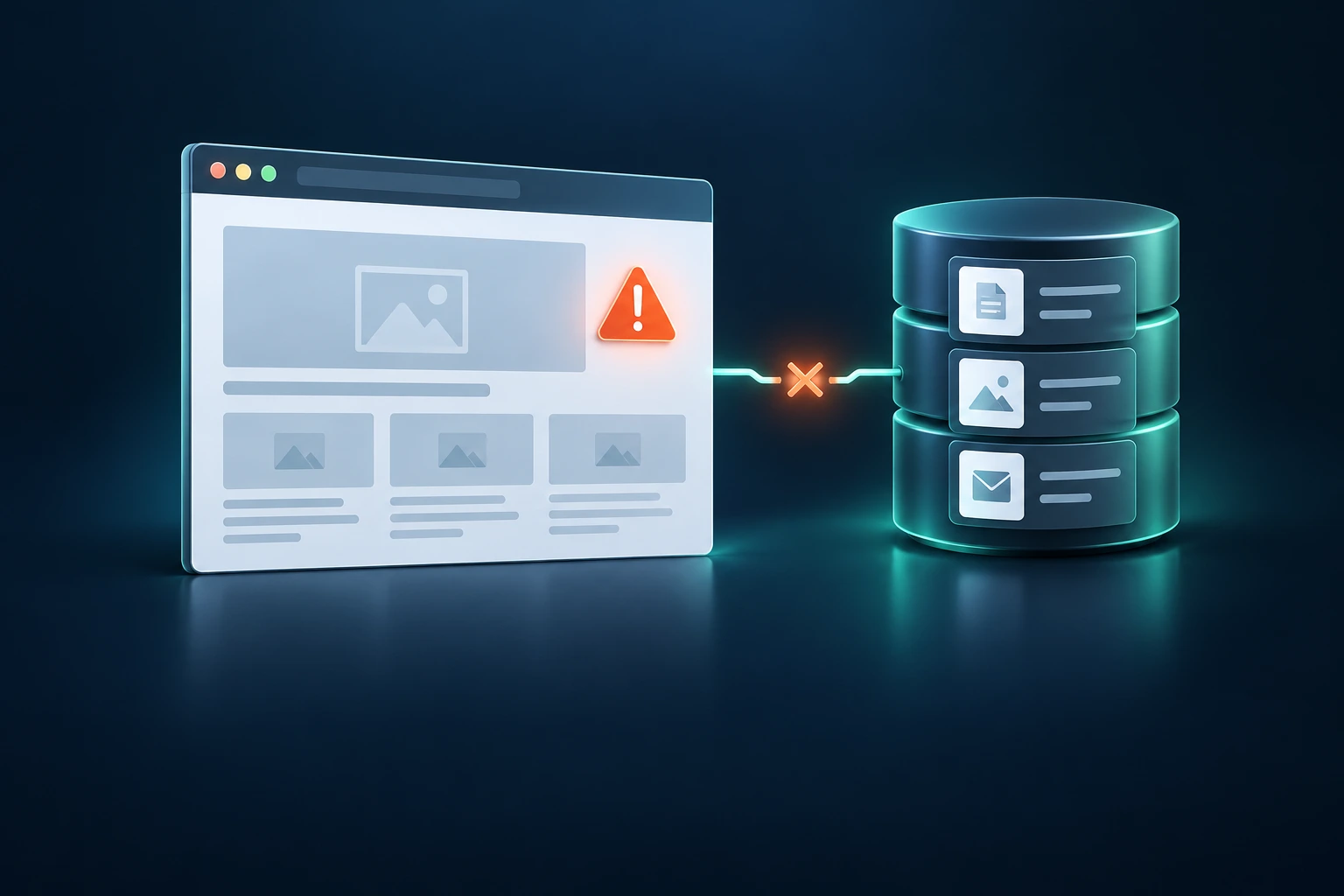
A WordPress database connection error looks scary because your whole site can disappear in one refresh.
The good news is that this error usually has a short list of causes: wrong database credentials, a database server problem, a damaged database, or a hosting resource issue. The bad news is that guessing can make things worse, especially if you start changing passwords or restoring backups without knowing what changed.
This guide walks through how to diagnose and fix “Error establishing a database connection” in WordPress, with practical steps you can take before calling your host or developer.
What the error actually means
WordPress stores your pages, posts, settings, users, orders, form entries, and plugin data in a MySQL or MariaDB database. When someone visits your site, WordPress loads files from your hosting account, then connects to the database to fetch the content.
“Error establishing a database connection” means the WordPress files loaded, but WordPress could not connect to the database.
That can happen when:
- The database name, username, password, or host is wrong.
- The database server is down or overloaded.
- The database user no longer has permission to access the database.
- The database tables are damaged and need repair.
- Your hosting account is out of disk space or hitting resource limits.
- A migration, restore, or update changed something unexpectedly.
If your site is a WooCommerce store, booking site, membership site, or anything that takes payments or submissions, treat this as urgent. Visitors cannot browse normally, and orders or form submissions may fail while the database is unavailable.
First, do not panic-change everything
When a site is down, it is tempting to start changing passwords, editing files, disabling plugins, or restoring backups immediately. Slow down for five minutes.
Before you change anything, write down what happened:
- When did the error start?
- Was anything updated recently?
- Was the site migrated to a new host?
- Did someone change the database password in cPanel or another hosting panel?
- Is the error constant, or does it come and go?
- Does the WordPress admin show the same error?
This helps you avoid undoing the wrong thing. A constant error after a migration usually points to credentials. An intermittent error during busy periods often points to hosting load or database server instability.
Tip: If you have a recent backup, keep it safe, but do not restore it blindly yet. If the problem is a database server outage or wrong password, restoring files will not fix it and could overwrite newer content.
Step 1: Check whether your host is having a database issue
Start with the simplest possibility: the database server may be down.
If you use shared hosting, cloud hosting, or managed WordPress hosting, the database often runs on the same server or a nearby database service. If that service is unavailable, your WordPress files may still be present, but WordPress cannot fetch content.
Check your hosting dashboard for:
- Service status alerts.
- Database server maintenance notices.
- Resource usage warnings.
- Disk space usage.
- Recent account suspension or billing notices.
If you have access to phpMyAdmin or another database tool, try opening the database there. If phpMyAdmin cannot connect either, the issue is likely at the hosting or database server level, not inside WordPress.
If the error appeared with no recent site changes, contact your host by support ticket or email and ask them to check MySQL or MariaDB availability, disk space, and database user permissions.
Hosting quality matters here. A WordPress site relies on the database constantly, so slow or unstable database hosting can cause visible downtime. If this keeps happening, it may be worth reviewing Why Your WordPress Host Affects Site Speed and whether your current setup is still a good fit.
Step 2: Check the database details in wp-config.php
WordPress stores its database connection settings in a file called wp-config.php. This file is typically in the main WordPress folder, although some setups place it one level above the public site folder for security.
The important settings are usually:
DB_NAME, the database name.DB_USER, the database username.DB_PASSWORD, the database user password.DB_HOST, the database server address.
Open the file through your hosting file manager, SFTP, or another safe file access method. Do not edit it in a rush. Copy the existing values somewhere secure before making changes.
Then compare those values against the database information shown in your hosting control panel.
Common credential problems
These are the usual mistakes:
- The database password was changed in the hosting panel but not updated in
wp-config.php. - The database name changed during a migration.
- The database username was copied without the hosting account prefix.
- The database host should not be
localhoston that host. - A quote mark, space, or extra character was accidentally added while editing.
On many hosting accounts, database names and usernames include a prefix based on the account name. Do not assume the database is simply called something like “wordpress”. Use the exact value from your hosting panel.
If you are not sure what the database host should be, ask your host. It is often localhost, but not always.
Step 3: Confirm the database user has permission
Even if the username and password are correct, WordPress still needs that user to have access to the database.
In cPanel-style hosting panels, there is usually a MySQL Databases area where you can:
- View databases.
- View database users.
- Add a user to a database.
- Set user privileges.
Make sure the database user listed in wp-config.php is assigned to the database listed in wp-config.php. The user should have the permissions WordPress needs to read and write data.
This issue is common after migrations. The files may have moved correctly, and the database may have imported correctly, but the database user was never attached to the database on the new hosting account.
Step 4: Check whether the database is corrupted
Sometimes WordPress can connect to the database server, but one or more database tables are damaged. You may see the front-end error, or you may see a message in the admin area saying the database needs repair.
WordPress includes a basic database repair tool. To use it, you add this line temporarily to wp-config.php:
define('WP_ALLOW_REPAIR', true);Then visit the repair tool in your browser at:
https://yourdomain.com/wp-admin/maint/repair.phpReplace yourdomain.com with your real domain. The tool usually offers repair and repair plus optimize options.
After running the repair, remove the WP_ALLOW_REPAIR line from wp-config.php. Do not leave it there. That repair screen is not protected by a normal WordPress login when enabled.
When not to use this: If you suspect a hack, do not rely on database repair as the fix. It may clean up corruption, but it will not remove backdoors, malicious users, or injected spam content.
For ongoing cleanup and performance, see WordPress Database Optimization Guide. Optimization is different from emergency repair, but both matter for keeping WordPress healthy.
Step 5: Look at recent updates, restores, and migrations
A database connection error often appears right after something changed. The timing matters.
Think through the last few hours or days:
- Was WordPress moved to a new host?
- Was a staging site pushed live?
- Was a backup restored?
- Was the database password reset?
- Was the domain pointed to a new server?
- Was the hosting account upgraded or moved?
After a migration, the most common issue is that the site files are on the new server, but the database settings still point to the old setup. Another common issue is that DNS points visitors to one server while the database exists on another.
If you recently moved hosting, confirm these three things match:
- The domain points to the correct hosting account.
- The WordPress files on that account contain the correct
wp-config.php. - The database listed in
wp-config.phpexists on that same hosting environment or is reachable from it.
If you need a safer migration process, this guide may help: How to Migrate Your Website to a New Host.
Step 6: Check disk space and hosting resource limits
A full hosting account can break database operations. WordPress may not be able to write sessions, transients, cache files, logs, or database changes. In some cases, MySQL or MariaDB can behave unpredictably when storage is exhausted.
Check your hosting panel for:
- Disk usage.
- Inode or file count usage.
- CPU usage.
- Memory usage.
- Entry process or concurrent connection limits.
- Database size limits, if your host applies them.
Large backups stored inside the hosting account are a common culprit. So are old staging copies, oversized error logs, uncompressed image uploads, and abandoned plugin data.
If your site only fails at busy times, the database may be overloaded rather than broken. WooCommerce stores, membership sites, and sites with heavy search or filtering features can put much more pressure on the database than a simple brochure site.
Step 7: Disable problematic plugins only if you have evidence
Most plugin issues do not cause a full database connection error. A bad plugin is more likely to cause a fatal error, a white screen, a 500 error, or broken functionality.
That said, a plugin can overload the database with expensive queries, especially during traffic spikes or background tasks. Examples include analytics plugins, backup plugins, security scanners, broken import tools, and poorly built search or filtering plugins.
If the site comes back after resource usage drops, review recent plugin changes. If the error started after installing or updating a specific plugin, disable that plugin temporarily by renaming its folder through file access, then test again.
Do not disable every plugin at once unless you have a rollback plan. On WooCommerce or booking sites, doing that can create extra damage, such as broken checkout, missing payment functions, or failed appointment flows.
Step 8: Restore from backup only when it makes sense
A backup restore can be the right fix if the database was damaged, overwritten, or changed incorrectly. It is the wrong fix if the database server is down, credentials are wrong, or the host is out of resources.
Before restoring, ask:
- What exact problem am I trying to undo?
- How old is the backup?
- Will restoring lose orders, form entries, bookings, or new content?
- Does the backup include both files and database?
- Can I restore to staging first?
For a WooCommerce store, restoring yesterday’s database can erase orders placed after the backup time. For a contact-form-heavy service business, it may remove recent enquiries. For a membership site, it may roll back user registrations or account changes.
If you are not sure, clone the site to a staging environment first and test the restore there. A staging check takes longer, but it avoids turning one outage into a data-loss problem.
For more on testing backups properly, read How to Test WordPress Backups (and Why You Should).
When the error points to hosting, not WordPress
If database credentials are correct and the database itself is not corrupted, your hosting environment may be the real issue.
Signs include:
- The error appears randomly and disappears on refresh.
- The site fails during high traffic periods.
- phpMyAdmin is slow or unavailable.
- Your hosting panel shows resource limit warnings.
- Other sites on the same hosting account are also unstable.
- Your host reports MySQL or MariaDB restarts.
In that case, ask your host for the database error logs around the time of the outage. You are looking for connection limit errors, authentication errors, crashed tables, disk issues, or server restarts.
If your business depends on the site, recurring database outages are not something to “wait and see” forever. They affect leads, sales, trust, and admin access.
Ambrite’s Canadian cloud hosting uses Canadian infrastructure, LiteSpeed web servers, NVMe SSD storage, free SSL, and Imunify360 protection on every plan. Hosting starts at $7.99/month CAD, and every plan includes free website migration. Business and Pro plans include daily backups, while Starter includes weekly backups.
What not to do
Some fixes floating around online are risky or just wrong for this error.
Do not reinstall WordPress as your first move
Reinstalling WordPress files will not fix incorrect database credentials or a down database server. It can also overwrite files you may need for troubleshooting.
Do not delete the database
Your database contains your content and settings. Deleting it is usually catastrophic unless you have a verified restore plan and know exactly what you are doing.
Do not repeatedly reset database passwords
If you reset the database password in the hosting panel, you must update wp-config.php to match. Repeating that process without tracking the current password can make the outage harder to solve.
Do not assume it was a hack
A database connection error is not automatically a security incident. It is often plain misconfiguration or hosting instability.
However, if you also see unknown admin users, spam redirects, strange files, or Google warnings, investigate security separately. In that case, database repair is not enough.
How to prevent this error from coming back
You cannot prevent every outage, but you can reduce the odds and make recovery much faster.
- Keep reliable backups. Make sure backups include both files and database, and test restores before you need them.
- Use staging for risky changes. Test migrations, major plugin updates, and database changes away from the live site.
- Track credentials securely. Do not scatter database passwords through email threads or random documents.
- Monitor uptime. If the error is intermittent, monitoring helps prove when and how often it happens.
- Watch disk and resource usage. A site that outgrows its hosting will often show warning signs before a full outage.
- Clean up abandoned plugins and data. Less clutter usually means fewer background tasks and less database load.
- Choose hosting that fits the site. A WooCommerce store needs more database stability than a small five-page brochure site.
Ambrite’s WordPress maintenance plans include daily updates, daily backups kept for 90 days, 24/7 uptime monitoring, malware scanning, a global CDN with DDoS protection, daily speed checks, and Canadian support. Plans start at $49/month CAD, are month-to-month, and have no long-term contract.
If your site is on the Complete Plan, updates are tested on a staging copy first, and the plan includes form, cart, and checkout testing after major updates. That kind of process is useful when database problems would directly affect leads or sales.
When to get help
You can often fix this error yourself if it is a simple credential mismatch. If you are comfortable checking wp-config.php, database users, and hosting status, start there.
Get help if:
- You are not sure which database belongs to the live site.
- The site has recent WooCommerce orders, bookings, or form entries you cannot risk losing.
- The error keeps coming back after temporary fixes.
- You suspect database corruption but do not have a tested backup.
- Your host says the site is hitting resource limits and you need help finding why.
- You see security warning signs alongside the database error.
If you want a second set of eyes, you can reach Ambrite through the contact page. Support and project communication are handled by email and ticket, so there is a written record of what changed and why.
Quick troubleshooting checklist
- Check whether your host has a database outage or maintenance notice.
- Confirm the database name, user, password, and host in
wp-config.php. - Make sure the database user is assigned to the correct database.
- Try opening the database through phpMyAdmin or your host’s database tool.
- Check disk space, inode usage, and server resource limits.
- Review recent migrations, restores, DNS changes, and password changes.
- Use the WordPress repair tool only if the database appears damaged.
- Remove
WP_ALLOW_REPAIRafter using the repair tool. - Restore from backup only when you understand what data may be lost.
- If the issue is recurring, investigate hosting stability and database load.
The fastest fix is not always the safest one. Find out whether WordPress cannot connect because of credentials, database health, or hosting availability, then fix that specific problem instead of guessing.
This article was written with the help of AI and reviewed by Ambrite. Pricing, features, and technical details may change, so always verify with official sources before making decisions.
Was this article useful?
Related Articles
Your WordPress site loads in 8 seconds on mobile. Meanwhile, your competitor's site loads in 2...
Running a restaurant in 2026 means juggling a thousand things at once. Your WordPress site...
Your WordPress site has 47 active plugins and takes 8 seconds to load. Sound familiar? Plugin...
Your real estate website is more than just a digital business card: it's a 24/7 sales machine...
Your staff page hasn't been updated since Jessica left in 2022, and your services page still...
