
Blog
How WooCommerce Downtime Affects Your Revenue
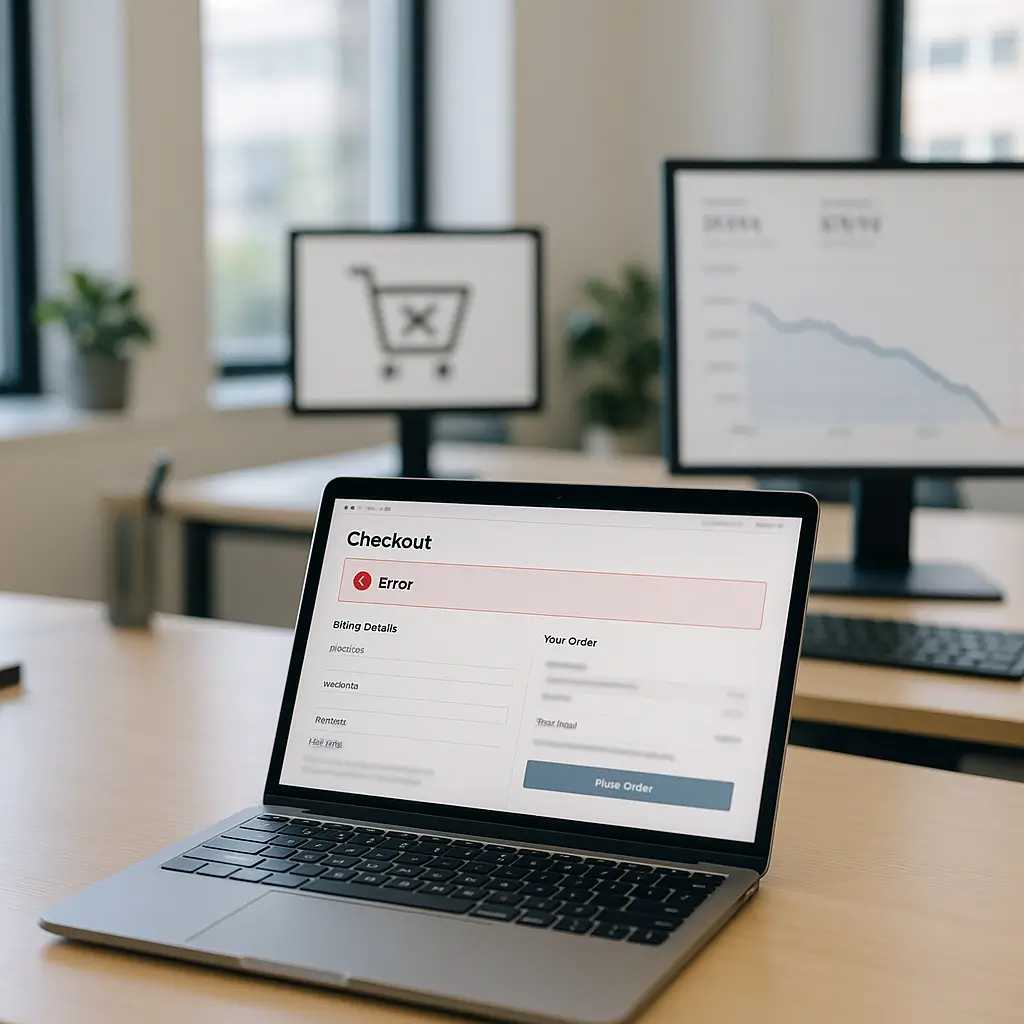
Your WooCommerce store does not have to be down for a full day to lose real money.
For many Canadian small businesses, a 20-minute outage during a lunch rush, evening shopping period, or paid ad campaign can mean missed orders, abandoned carts, frustrated customers, and support headaches the next morning.
Downtime is not just a technical problem. It is a revenue problem, a trust problem, and sometimes a customer data problem too.
What Counts as WooCommerce Downtime?
When people hear “downtime,” they usually picture a website that will not load at all. That is only one version of the problem.
For a WooCommerce store, downtime can mean any issue that stops a customer from completing a purchase.
- The website shows an error page.
- Product pages load, but the cart does not work.
- The checkout page freezes or returns an error.
- Payment processing fails.
- Shipping rates do not calculate.
- The site is technically online, but so slow that customers give up.
- Admin access is broken, so staff cannot manage orders.
- Emails stop sending, so customers do not receive confirmations.
That last point matters. A store can look fine on the surface while quietly failing behind the scenes.
If customers can browse but cannot pay, you are still losing revenue.
The Simple Revenue Math
You do not need a complicated spreadsheet to estimate the cost of downtime. Start with a simple formula:
Average hourly revenue × number of hours affected = estimated direct revenue loss
For example, if your WooCommerce store normally brings in $600 CAD on a weekday and most sales happen between 6 p.m. and 10 p.m., your average during that peak window is not the same as your average across the whole day.
A one-hour outage during your busiest shopping period may cost far more than a one-hour outage at 3 a.m.
Use your WooCommerce reports, payment gateway reports, and analytics data to estimate:
- Average daily revenue
- Peak shopping hours
- Average order value
- Conversion rate
- Traffic from paid ads, email campaigns, and social media
- Cart abandonment during problem periods
Direct lost sales are only the obvious part. The hidden costs are often worse.
The Hidden Costs of WooCommerce Downtime
1. Paid Ads Keep Spending While Your Store Is Broken
If you are running Google Ads, Meta ads, TikTok ads, or email promotions, downtime can burn through your budget while sending people to a broken store.
That is painful because you pay for the click whether the checkout works or not.
If your store goes down during a campaign, pause your ads quickly. Do not wait until the outage is fully diagnosed.
Once the store is stable, restart the campaign and watch conversion data closely. A technical issue can make a good campaign look bad.
2. Customers May Not Come Back
Some customers will try again later. Many will not.
If they were shopping for a gift, replacement part, local delivery item, or time-sensitive purchase, they may simply choose another store.
This is especially true on mobile. People are less patient when they are browsing from a phone, comparing prices, or checking out between errands.
If your store feels unreliable, customers may assume the business behind it is unreliable too.
3. Support Requests Increase
Downtime usually creates extra work for your team.
You may receive emails like:
- “Did my order go through?”
- “I was charged twice.”
- “The checkout page crashed.”
- “I never received a confirmation email.”
- “Can I place the order by phone instead?”
Now your team is checking payment records, manually confirming orders, replying to customers, and possibly issuing refunds.
Even if no sales are permanently lost, your operating cost goes up.
4. Failed Payments Create Trust Issues
Checkout problems feel more serious than a broken image or slow blog post.
When money is involved, customers get nervous fast.
If a payment gateway times out, a customer may not know whether their card was charged. If they try again and see another failure, they may contact their bank, abandon the purchase, or leave frustrated.
Canadian WooCommerce stores using payment providers such as Moneris, Stripe, PayPal, Square, or other gateways should treat checkout testing as regular maintenance, not a one-time setup task.
If payment issues are recurring, this related guide may help: WooCommerce Payment Gateway Troubleshooting.
5. SEO and Search Visibility Can Suffer
A short outage usually will not destroy your rankings. Search engines understand that websites occasionally have problems.
Repeated downtime is different.
If crawlers regularly hit server errors, very slow pages, or broken product URLs, your store may become less reliable in search results. That can reduce organic traffic over time.
For stores that rely on product category pages, local pickup pages, or seasonal landing pages, that drop can hurt long after the outage is fixed.
6. Inventory and Order Data Can Get Messy
WooCommerce is dynamic. Orders, stock levels, customer accounts, coupons, taxes, shipping rates, and payment statuses all interact.
When downtime happens during checkout, you can end up with awkward edge cases:
- Payment captured but order marked as pending
- Order created but confirmation email not sent
- Stock reduced for an order that did not complete
- Coupon used but customer did not finish checkout
- Shipping rate failed, causing the order to stall
These are not always easy to untangle, especially if staff manually adjusted things during the outage.
Common Causes of WooCommerce Downtime
Plugin or Theme Conflicts
WooCommerce stores often depend on many moving parts: payment gateways, shipping plugins, tax tools, subscriptions, memberships, product filters, page builders, caching plugins, and email tools.
One update can conflict with another plugin and break checkout.
This is why testing updates on a staging site is so useful. You can catch problems before customers do. For more on that, read WooCommerce Staging: Why You Need a Test Site.
Cheap or Overloaded Hosting
WooCommerce uses more server resources than a basic brochure website.
Every cart action, checkout step, stock adjustment, coupon calculation, and logged-in customer session adds load. A hosting plan that works fine for a small business website may struggle once your store gets busier.
Look for hosting that can handle dynamic WordPress requests, not just cached pages.
Ambrite’s cloud web hosting uses LiteSpeed, NVMe SSD storage, and Imunify360 security, with plans starting at $7.99/month CAD. That does not mean every store belongs on the smallest plan, but it does mean the foundation matters.
Bad Caching Rules
Caching can make WooCommerce faster, but incorrect caching can break carts and checkout.
Product pages are often safe to cache. Cart, checkout, and customer account pages typically need special handling.
If customers see someone else’s cart, outdated shipping rates, or checkout errors after caching changes, treat it seriously and roll back the change.
Expired SSL or DNS Problems
If your SSL certificate fails, browsers may block customers from accessing your store safely. If DNS records are changed incorrectly, customers may not reach your site at all.
These are preventable issues, but they still happen.
Keep domain, DNS, SSL, and hosting access documented. Do not leave all access with one person who may be unavailable during an emergency.
Security Incidents
A hacked WooCommerce store can be taken offline, redirected, blacklisted, or quietly modified to steal information.
For Canadian businesses, this can raise privacy concerns too. If your store collects customer names, addresses, phone numbers, emails, order details, or account information, you need to think about how that data is protected.
Downtime caused by malware is often more expensive than normal downtime because cleanup, investigation, reputation repair, and possible customer communication may all be involved.
How to Estimate Your Real Downtime Cost
Use this quick exercise once per quarter. It will give you a realistic number to guide hosting, maintenance, and monitoring decisions.
- Find your average daily revenue. Use WooCommerce reports and payment gateway reports.
- Identify your peak sales windows. Look at order timestamps, not just daily totals.
- Calculate your average order value. This helps estimate how many orders were likely missed.
- Check your paid traffic spend. Include ads, influencer campaigns, email promotions, and affiliate traffic if applicable.
- Add staff time. Estimate how long your team spent dealing with customer messages and manual fixes.
- Review refunds or duplicate charges. Payment problems often create extra admin work.
- Include lost trust. This is harder to measure, but repeat customers disappearing after a bad checkout experience is a real cost.
You do not need a perfect number. You need a useful estimate.
If a one-hour outage during peak time could cost more than a month of better hosting or maintenance, the business case becomes pretty clear.
What to Do Immediately When Your Store Goes Down
When WooCommerce breaks, do not randomly click around changing settings. That can make recovery harder.
Use a calm, repeatable process.
- Confirm the problem. Test from another device and network. Ask someone outside your office to check too.
- Check whether the whole site is down or only checkout. This helps narrow the issue.
- Pause paid ads if checkout is affected. Do this early to stop wasting budget.
- Check recent changes. Look for plugin updates, theme changes, hosting changes, DNS edits, or new code.
- Contact your host or maintenance provider. Give them the exact error, time it started, and what changed recently.
- Avoid making multiple changes at once. Change one thing, test, then continue.
- Document what happened. You will want this later for prevention.
Tip: If customers may have been charged during the outage, check payment gateway records before manually recreating orders. Guessing can create duplicate charges or incorrect inventory.
How to Reduce WooCommerce Downtime
Use Uptime Monitoring
You cannot fix an outage you do not know about.
Uptime monitoring checks your site at regular intervals and alerts you when it becomes unavailable. Better monitoring can also check specific pages, such as checkout or account login pages.
For a deeper explanation, see WordPress Uptime Monitoring Explained.
Test Checkout Regularly
Do a real checkout test on a schedule.
For many stores, monthly testing is a good minimum. If you update products often, run promotions, or rely heavily on online sales, test more often.
Your test should cover:
- Adding a product to cart
- Applying a coupon if you use coupons
- Calculating shipping
- Completing payment using an approved test method where available
- Receiving the order confirmation email
- Checking the order status in WooCommerce
Payment gateways change their interfaces and requirements from time to time, so use their official documentation for current testing instructions.
Keep Backups That Can Actually Be Restored
Backups are not useful unless they work.
For WooCommerce, backups are trickier than regular WordPress backups because orders can arrive at any time. Restoring an old backup can accidentally erase recent orders if you are not careful.
A good backup plan should account for both files and the database. It should also be tested before you need it.
Use a Staging Site for Risky Changes
Do not test major updates on your live store if you can avoid it.
Use staging for:
- WooCommerce updates
- Payment gateway updates
- Shipping plugin changes
- Theme updates
- PHP version changes
- Major caching changes
- New checkout or cart features
Staging is not perfect because live customer activity cannot always be duplicated exactly. But it catches many obvious problems before they cost you sales.
Schedule Updates Carefully
Do not update WooCommerce five minutes before a sale starts.
Avoid major changes during:
- Holiday promotions
- Email campaign launches
- Influencer or media campaigns
- High-traffic weekends
- Large inventory drops
- Staff vacations when fewer people can respond
Choose a quieter window, take a backup first, update in staging where possible, then test checkout after the update.
Choose Hosting Based on Store Behaviour, Not Just Price
A WooCommerce store with 20 products and occasional orders has different hosting needs than a store with thousands of products, subscriptions, memberships, or heavy search filters.
Price matters, especially for small businesses. But the cheapest plan is not always cheaper if it causes slow checkout, downtime, or lost orders.
Look at CPU limits, memory, storage speed, support quality, backup options, malware protection, and how the host handles traffic spikes.
When Not to Over-Engineer Downtime Prevention
Not every WooCommerce store needs enterprise-level infrastructure.
If your store only takes a few orders per month, spending heavily on complex redundancy may not make sense yet. You may be better served by reliable hosting, regular updates, tested backups, and basic monitoring.
On the other hand, if your store is your main revenue channel, downtime planning deserves a bigger budget.
A practical rule: spend based on the cost of failure.
If one serious outage could cost thousands in lost sales, ad spend, refunds, and staff time, prevention is not a luxury. If your store is still new and low-volume, start with the basics and scale your setup as revenue grows.
Canadian Store Considerations
Canadian WooCommerce stores have a few extra details to keep in mind.
If you sell across provinces, taxes and shipping rules can affect checkout complexity. If you use Canada Post, local courier integrations, pickup options, or regional delivery rules, test them regularly.
If your store collects customer information, think about privacy and security too. Customer names, addresses, emails, phone numbers, and order history are not just “website data.” They are business records that need to be protected.
PIPEDA may apply depending on your business and how you handle personal information. If downtime is connected to a security incident, the issue may go beyond lost revenue.
Bilingual stores also need extra testing. If your English checkout works but your French checkout has missing strings, broken buttons, or confusing payment text, you may lose sales without noticing right away.
What a Good WooCommerce Downtime Plan Looks Like
You do not need a 40-page disaster recovery document. You do need a plan your team can actually follow.
At minimum, document:
- Who receives uptime alerts
- Who can pause paid ads
- Who has hosting access
- Who has domain and DNS access
- Who can contact the payment processor
- Where backups are stored
- How to test checkout after a fix
- What to tell customers if orders were affected
Keep this somewhere your team can access even if the website is down.
Do not store the only copy inside WordPress.
How Ambrite Helps Reduce WooCommerce Downtime
Ambrite works with small businesses across Canada that use WordPress and WooCommerce for real revenue, not just online brochures.
Our hosting includes LiteSpeed, NVMe SSD storage, and Imunify360 protection. Our WordPress maintenance plans start at $49/month CAD and can help with updates, monitoring, backups, and security checks depending on the plan.
If you want help keeping your store stable, you can review our WordPress maintenance and security plans or contact Ambrite to ask about your store’s setup.
The goal is not to promise that downtime will never happen. No honest provider should promise that.
The goal is to reduce the chances of downtime, catch problems quickly, recover cleanly, and protect the revenue your store depends on.
This article was written with the help of AI and reviewed by Ambrite. Pricing, features, and technical details may change. Always verify with official sources before making decisions.
Was this article useful?
Related Articles
Setting up Moneris on your WooCommerce store feels like wrestling with government paperwork,...
Running a Canadian e-commerce store means dealing with Canada Post shipping rates, and if...
Your WooCommerce store is hemorrhaging money. Every second it takes to load costs you...
Your WooCommerce store crashed yesterday. The database is corrupted. Your last backup? Three...
Your WooCommerce store just notified you about a new update. Should you click that update...
