
Blog
WooCommerce Payment Gateway Troubleshooting
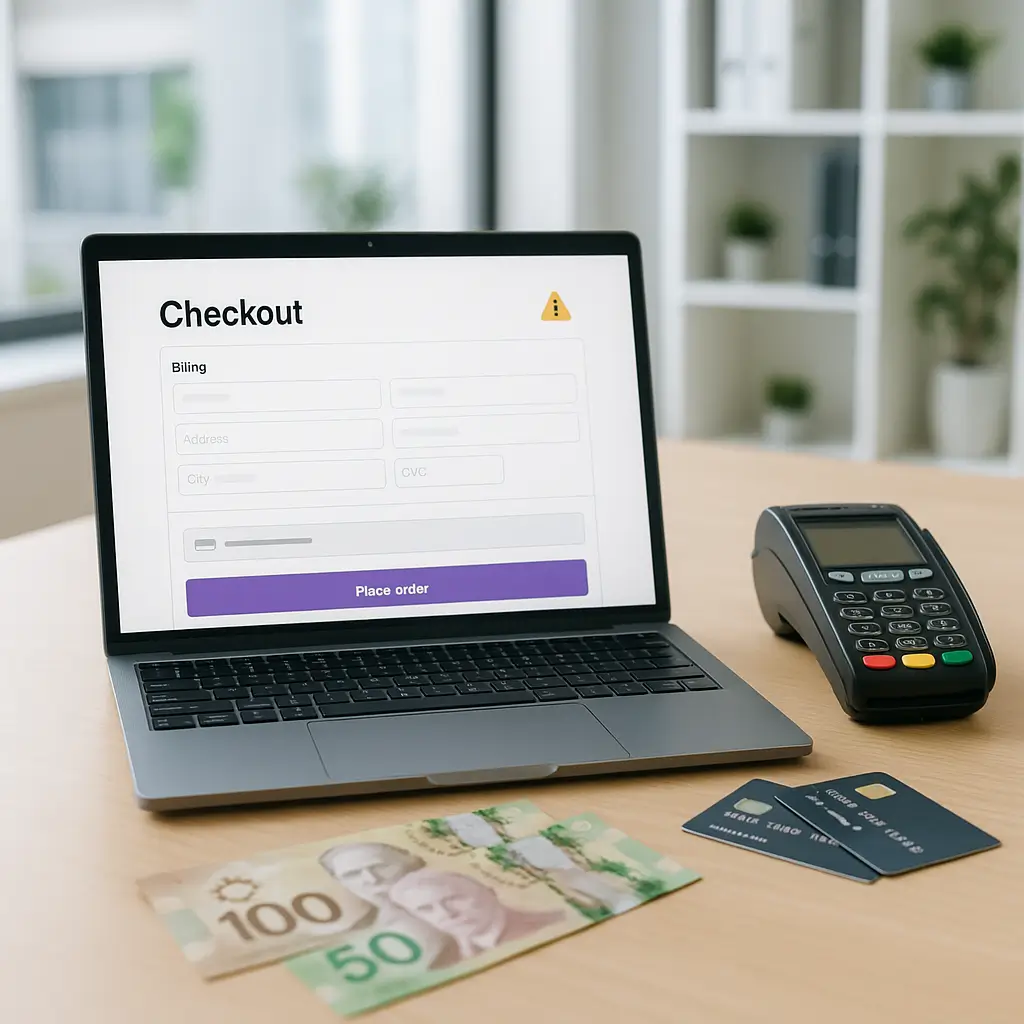
Nothing gets a store owner’s attention faster than a customer saying, “Your checkout won’t take my card.” Payment gateway issues can look mysterious, but most WooCommerce checkout problems come down to a handful of predictable causes: credentials, SSL, caching, plugin conflicts, webhook failures, or gateway-side declines.
This guide walks through how to troubleshoot WooCommerce payment gateway problems without making things worse. It’s written for Canadian store owners using gateways like Moneris, Stripe, PayPal, Square, Helcim, or similar processors.
Quick rule: do not keep repeatedly testing real credit cards on a broken checkout. Use the gateway’s test mode or sandbox when available, and switch back to live mode only after you understand what changed.
Start by Identifying the Type of Payment Problem
Before changing settings, figure out exactly where the payment is failing. “Payments are broken” is too broad to troubleshoot safely.
Ask yourself which of these is happening:
- The payment method does not appear at checkout.
- The customer sees an error before entering card details.
- The card form loads, but the payment fails after submission.
- The order is created in WooCommerce, but payment stays pending.
- The customer is charged, but WooCommerce does not mark the order as paid.
- Refunds, captures, or subscriptions are failing after the original payment.
Each symptom points to a different area. A missing payment method usually means a setting, currency, shipping, or location rule issue. A customer being charged while the order remains unpaid usually points to webhook, callback, or server communication problems.
Check the Obvious Settings First
It sounds basic, but many payment issues are caused by one small setting being changed during an update, migration, or troubleshooting session.
In WooCommerce, check the payment gateway settings and confirm:
- The gateway is enabled.
- The store is using the correct currency, such as CAD if you sell primarily in Canada.
- Test mode is not accidentally enabled on the live store.
- Live credentials are entered in live mode, and test credentials are entered in test mode.
- The gateway supports the customer’s billing country and currency.
- Any minimum or maximum order amount rules are not hiding the gateway.
If you recently migrated the site, cloned it to staging, changed domains, or restored from backup, credentials may need to be re-entered or reconnected. Some gateways bind settings to the current site URL or require verification again after a domain change.
If you use Moneris specifically, see our related guide: How to Set Up Moneris Payment Processing on Your Canadian WooCommerce Store.
Confirm SSL and HTTPS Are Working Properly
Payment gateways expect your checkout to run over HTTPS. If your SSL certificate is expired, misconfigured, or only partly applied, payment forms may fail or refuse to load.
Visit your checkout page in a private browser window and look for browser security warnings. Then check whether every checkout URL uses HTTPS, including cart, checkout, account, and order payment pages.
Common SSL-related problems include:
- Mixed content warnings caused by old HTTP image, script, or stylesheet URLs.
- Expired SSL certificates.
- Checkout pages redirecting between HTTP and HTTPS.
- Old URLs left behind after a migration.
- Security plugins forcing redirects incorrectly.
If the issue started after moving hosts or changing domains, SSL should be one of the first things you check. Payment gateways are deliberately strict here because they are handling sensitive customer data.
Look for Caching Problems on Cart and Checkout
WooCommerce checkout pages should not be cached like regular marketing pages. If your cart, checkout, or account pages are cached, customers may see stale totals, missing payment options, expired nonces, or failed submissions.
This is especially common after installing a new caching plugin, CDN, firewall, or performance optimization tool.
Make sure these pages are excluded from full-page caching:
- Cart
- Checkout
- My Account
- Order received / thank-you pages
- Any custom payment return pages used by your gateway
Also be careful with JavaScript optimization. Payment gateways often load secure scripts from the processor. Combining, delaying, or deferring those scripts can break card fields, wallet buttons, or fraud checks.
Tip: If the payment form works when optimization plugins are disabled, don’t just turn everything back on. Re-enable features one at a time and keep checkout scripts excluded from aggressive optimization.
For more background on checkout-specific failures, see Why Your WooCommerce Checkout Keeps Breaking.
Check for Plugin and Theme Conflicts
WooCommerce depends on several moving parts: your theme, payment plugin, shipping plugin, tax settings, security tools, caching tools, and sometimes page builders. One update can break compatibility between them.
If a payment problem appeared right after an update, don’t assume the gateway is at fault. The payment plugin may be fine, while another plugin is interfering with checkout validation or scripts.
Common conflict sources include:
- Checkout field editor plugins
- Currency switchers
- Subscription or deposit plugins
- Fraud prevention plugins
- Security and firewall plugins
- JavaScript minification tools
- Custom checkout templates in the theme
- Old page builder checkout widgets
The safest way to test is on a staging site, not your live store. Disable non-essential plugins on staging, switch to a default WooCommerce-compatible theme if needed, and test the gateway again.
If you do not already have a test environment, read WooCommerce Staging: Why You Need a Test Site. Troubleshooting payments directly on a live store can create duplicate orders, failed authorizations, or confused customers.
Review WooCommerce Logs
WooCommerce and most payment gateway plugins include logs. These logs often explain the real reason for a failure better than the customer-facing message.
Customer messages are usually vague on purpose. A shopper might see “Payment failed” while the log shows a declined card, missing API permission, webhook verification failure, currency mismatch, or communication timeout.
Look for logs related to:
- The payment gateway name
- Webhook events
- Fatal errors
- Order status changes
- Checkout validation errors
Do not post full logs publicly without reviewing them first. Logs may contain order IDs, customer names, email addresses, transaction references, or other sensitive details.
If you need to send logs to a developer or support team, remove anything not needed for troubleshooting. Keep enough detail to show the error, time, order number, and gateway response, but avoid sharing unnecessary customer data.
Understand Declines vs Technical Failures
Not every failed payment means your website is broken. Sometimes the bank or processor declined the transaction.
Gateway declines can happen because of:
- Incorrect card details
- Insufficient funds
- Billing address mismatch
- Card not enabled for online purchases
- Fraud rules being triggered
- Customer’s bank blocking the transaction
- Cross-border purchase risk controls
A technical failure is different. That usually means WooCommerce could not communicate properly with the gateway, or the gateway response could not be processed.
If only one customer is affected, it may be a card or bank issue. If every customer is affected, or multiple payment methods fail at once, treat it as a site or gateway configuration issue.
Check Webhooks, Callbacks, and Return URLs
Webhooks are how many gateways tell WooCommerce that a payment succeeded, failed, was refunded, or was disputed. If webhooks break, the customer may be charged but the order may stay “Pending payment” or “On hold.”
This is one of the most frustrating payment problems because the transaction may succeed outside WooCommerce, while the store never receives the update.
Webhook issues can be caused by:
- Changed domain names
- Staging URLs copied to the live gateway account
- Firewall rules blocking gateway requests
- Security plugins blocking callback requests
- Maintenance mode blocking external connections
- Gateway credentials being regenerated
- Old webhook endpoints remaining in the processor dashboard
Check the gateway’s official documentation for current webhook setup steps. The exact screens and labels change, so avoid following old screenshots from random tutorials.
If you are using both a staging site and a live site, be extra careful. A staging site should not receive live payment webhooks, and a live store should not point to a staging callback URL.
Verify Currency, Taxes, and Shipping Totals
Canadian WooCommerce stores often have a few extra moving parts: CAD pricing, GST/HST/PST rules, provincial shipping, and sometimes cross-border sales.
A payment gateway may reject an order if the submitted total does not match what the gateway expects. This can happen when tax, shipping, coupons, or currency conversion changes during checkout.
Check for problems with:
- Currency switcher plugins changing totals unexpectedly
- Rounding differences between WooCommerce and the gateway
- Coupons applying after the payment request is created
- Shipping rates recalculating late in checkout
- Tax settings changing based on billing vs shipping address
- Multi-currency gateways settling in a different currency than expected
If you sell only in Canada, keeping the store in CAD usually simplifies troubleshooting. Multi-currency can be useful, but it adds more failure points and should be tested carefully before being used on a live store.
Test the Checkout Like a Real Customer
Do not only test while logged in as an administrator. Admin sessions can hide problems that normal customers see.
Use a private browser window and test:
- Guest checkout
- Logged-in customer checkout
- Mobile checkout
- Different browsers
- Different shipping provinces
- Coupon and no-coupon orders
- Free shipping and paid shipping orders
If your store uses express checkout buttons, such as wallet payments, test those separately from regular card checkout. They often use different scripts, domain verification, and gateway flows.
Also test what happens after payment. The customer should land on the correct order confirmation page, receive an order email, and see the correct order status in their account.
Be Careful with Checkout Blocks and Custom Checkout Pages
WooCommerce has supported different checkout approaches over time, including traditional shortcode checkout and newer block-based checkout. Not every payment plugin supports every checkout layout equally well.
If a gateway does not appear, or the payment fields behave strangely, check whether the gateway officially supports the checkout type you are using. Do not assume compatibility.
Custom checkout pages can also cause problems. If your theme or page builder overrides the checkout heavily, gateway scripts may not load where they expect to.
When troubleshooting, it can help to temporarily test with a standard WooCommerce checkout setup on staging. If the gateway works there, the issue is likely your custom checkout layout or theme integration.
Check Server, Firewall, and Hosting Issues
Payment gateways need your website server to respond quickly and reliably. If checkout requests time out, fail intermittently, or get blocked by a firewall, payments can fail even when the gateway settings are correct.
Hosting-related payment issues can include:
- Slow server response during checkout
- Blocked outbound connections to the processor
- Security rules blocking webhook requests
- Resource limits being hit during traffic spikes
- PHP errors triggered by plugin conflicts
- Database delays when creating orders
This is where quality hosting matters. WooCommerce checkout is more demanding than a brochure website because it creates orders, calculates totals, talks to gateways, sends emails, and updates inventory in real time.
Ambrite’s cloud web hosting uses LiteSpeed, NVMe SSD storage, and Imunify360 security, with plans starting at $7.99/month CAD. That does not magically fix a bad plugin, but it gives WooCommerce a stronger foundation than overloaded bargain hosting.
Do Not Ignore Security Warnings
If your payment gateway suddenly fails and you also notice strange admin users, unknown plugins, redirects, spam pages, or changed checkout scripts, stop treating it as a normal payment issue.
Compromised WooCommerce stores can expose customer data, inject malicious scripts, or interfere with checkout. Payment pages are high-value targets because attackers know customers are entering sensitive information.
For Canadian businesses, customer privacy also has a legal side. If your store collects names, emails, billing addresses, shipping addresses, order history, or account details, you should understand your privacy obligations. A helpful starting point is How to Comply with PIPEDA: Essential Privacy Policy Requirements for Canadian Websites.
If you suspect malware, do not keep processing orders until the site has been reviewed. A broken checkout is bad; a compromised checkout is much worse.
When Not to Troubleshoot on the Live Store
Some fixes are safe to try live, such as confirming whether a gateway is enabled or checking whether test mode is on. Other changes should be tested somewhere else first.
Avoid doing these directly on the live store unless you have no other option:
- Switching themes
- Disabling many plugins at once
- Updating WooCommerce during business hours
- Changing caching rules without testing
- Replacing checkout pages
- Changing gateway modes repeatedly
- Restoring backups without understanding order data impact
WooCommerce stores are different from simple websites because new orders can appear at any time. Restoring an old backup can erase recent orders if done carelessly.
If your store is actively taking sales, use staging, maintenance windows, and a clear rollback plan. Payment troubleshooting should be calm and methodical, not frantic clicking through settings.
What to Collect Before Asking for Help
If you contact your gateway provider, developer, or hosting company, bring useful details. “It doesn’t work” usually leads to slow back-and-forth.
Collect this information first:
- The exact error message the customer sees
- The approximate time of the failed payment
- The WooCommerce order number, if one was created
- The payment method used
- Whether the customer was charged
- Whether the issue affects all customers or only some
- Recent changes: updates, new plugins, theme changes, hosting changes, DNS changes
- Relevant WooCommerce logs with sensitive data removed
- Whether the problem happens in test mode, live mode, or both
This helps the support team separate bank declines from plugin conflicts, webhook problems, and server issues.
A Practical Troubleshooting Order
If you need a simple sequence, use this order. It avoids the common mistake of changing five things at once and not knowing which one mattered.
- Confirm the gateway is enabled and not in the wrong mode.
- Check whether the issue affects all payment methods or just one.
- Review WooCommerce and gateway logs.
- Test checkout in a private browser window.
- Confirm SSL and HTTPS are working properly.
- Clear cache and verify cart, checkout, and account pages are excluded.
- Check for recent plugin, theme, or WooCommerce updates.
- Test for conflicts on staging.
- Review webhook or callback settings.
- Contact the gateway provider with logs and transaction details.
Only change one major thing at a time. After each change, test again and write down what happened.
How Ambrite Can Help
If your WooCommerce store keeps having checkout or payment issues, the problem may not be one setting. It may be a combination of outdated plugins, weak hosting, caching rules, missing staging, or no maintenance process.
Ambrite provides Canadian cloud hosting, WordPress maintenance, WooCommerce support, and web design services for small businesses across Canada. Our WordPress maintenance plans start at $49/month CAD and can include updates, monitoring, backups, security checks, and troubleshooting support depending on the plan.
If your checkout is failing right now, document what changed, avoid risky live-site experiments, and contact the right support team with logs. If you want help reviewing the issue, you can reach Ambrite through our contact page.
This article was written with the help of AI and reviewed by Ambrite. Pricing, features, and technical details may change. Always verify with official sources before making decisions.
Was this article useful?
Related Articles
Setting up Moneris on your WooCommerce store feels like wrestling with government paperwork,...
Running a Canadian e-commerce store means dealing with Canada Post shipping rates, and if...
Your WooCommerce store is hemorrhaging money. Every second it takes to load costs you...
Your WooCommerce store crashed yesterday. The database is corrupted. Your last backup? Three...
Your WooCommerce store just notified you about a new update. Should you click that update...
