
Blog
The Real Cost of Ignoring WordPress Updates
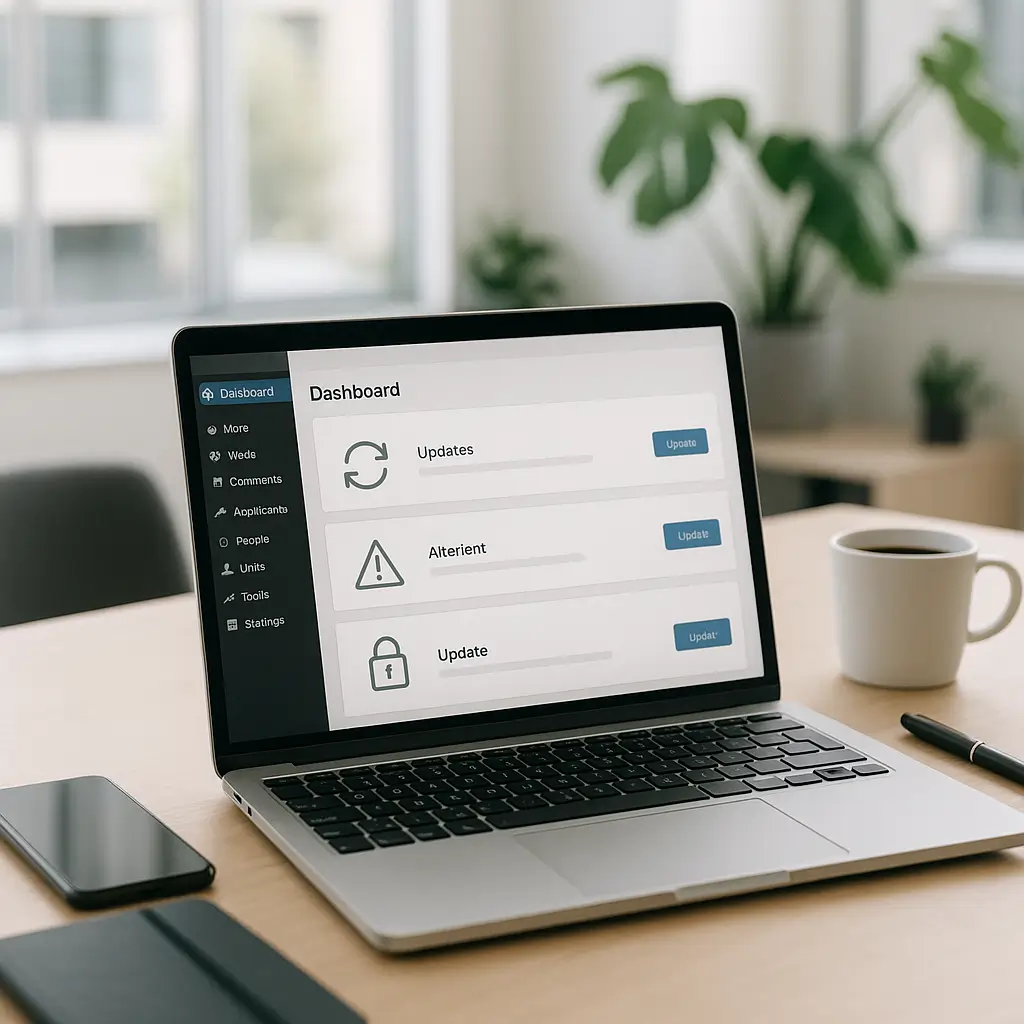
The cheapest WordPress update is usually the one you do before something breaks.
Skipping updates can feel harmless. Your website still loads, the contact form still works, and nobody on your team is complaining.
But WordPress updates are not just “new features.” They often include security patches, compatibility fixes, performance improvements, and bug fixes for things your visitors never see until they fail.
For Canadian small businesses, the real cost of ignoring WordPress updates is rarely just the cost of clicking “Update.” It can include emergency repairs, lost leads, lost trust, SEO damage, privacy headaches, and hours of staff time spent trying to figure out what went wrong.
What WordPress Updates Actually Cover
When people say “WordPress updates,” they usually mean several different things:
- WordPress core updates: updates to WordPress itself.
- Plugin updates: contact forms, SEO tools, page builders, booking systems, WooCommerce extensions, security plugins, and more.
- Theme updates: your website’s design framework and templates.
- PHP compatibility updates: code changes needed so your site works properly on modern hosting environments.
- Security patches: fixes for known vulnerabilities.
The tricky part is that these pieces depend on each other. A plugin may need a newer version of WordPress. A theme may need an update to stay compatible with a plugin. A hosting environment may require updated code to avoid performance or stability issues.
Ignoring one update often creates a chain reaction later.
The First Cost: Security Risk
Outdated plugins and themes are one of the most common ways WordPress sites get compromised. Attackers do not need to “target” your business personally. Many scans are automated.
If a known vulnerability exists in a plugin you use, bots can look for sites running that vulnerable software. Once they find one, they may try to inject spam links, create hidden admin users, redirect visitors, steal form data, or use your hosting account to send malicious traffic.
That sounds dramatic, but it happens quietly at first. Many hacked sites still look normal to the owner.
If you want a deeper look at how this works, read How Hackers Exploit Outdated WordPress Plugins.
Why “we’re too small to be hacked” is risky thinking
Small business websites are attractive because they are often less monitored. A restaurant, contractor, clinic, law office, realtor, or local service company may not have someone checking logs, alerts, uptime, or file changes every day.
That makes an outdated site an easy place for malware to hide.
The attacker usually does not care who owns the site. They care that the site is available, vulnerable, and useful for whatever they are trying to do.
The Second Cost: Emergency Cleanup
Routine maintenance is predictable. Emergency cleanup is not.
When a neglected WordPress site gets infected, the repair may involve:
- Scanning the site for malware
- Finding hidden backdoors
- Removing injected code or spam pages
- Restoring clean files from backup
- Checking admin users and passwords
- Reviewing plugins, themes, and file permissions
- Requesting blacklist removal if Google or browsers show warnings
- Testing forms, checkout, booking tools, and key pages after cleanup
That work takes time. It also usually happens when the business is under pressure: the site is down, customers are calling, ads are wasting clicks, or visitors are seeing warnings.
For context, Ambrite’s WordPress maintenance plans start from $49/month CAD. That is usually far easier to budget for than an urgent recovery project after months or years of skipped updates.
If you are comparing the costs, this related article may help: The True Cost of a Hacked WordPress Website.
The Third Cost: Downtime and Lost Leads
A broken website does not just look bad. It stops people from taking action.
If your quote request form fails, a potential customer may simply contact a competitor. If your booking calendar stops loading, patients or clients may assume you are unavailable. If your WooCommerce checkout breaks, sales stop immediately.
Downtime is especially painful when you are paying for traffic. If you are running Google Ads, Facebook Ads, Instagram promotions, or email campaigns, every visitor sent to a broken page is wasted money.
The worst part is that you may not notice right away. A contact form can appear to submit successfully but fail to deliver email. A booking plugin can show available times but fail at the final confirmation step. A payment page can work for one browser and fail for another.
Practical tip: After updates, test the actions that make your business money: contact forms, quote forms, booking forms, checkout, phone links, map links, and newsletter signups.
The Fourth Cost: SEO Damage
Search rankings are not protected just because your site used to rank well.
Outdated WordPress sites can hurt SEO in several ways:
- Malware can create spam pages that get indexed by Google.
- Broken layouts can make pages harder to use on mobile.
- Slow plugins can drag down performance.
- PHP errors can prevent pages from loading properly.
- Security warnings can scare visitors away before they click.
- Broken schema or SEO plugin issues can affect how pages appear in search.
Search engines want to send users to pages that are useful, safe, and accessible. A neglected site sends the opposite signal.
Recovering SEO after a security issue or long period of poor performance can take time. Even after the technical issue is fixed, search engines may need to recrawl and reassess your pages.
The Fifth Cost: Reputation
Visitors do not know whether your site broke because of a plugin conflict, malware, old code, or a missed update. They only see that your business looks unreliable.
This matters even more for businesses where trust is part of the sale:
- Law firms handling confidential inquiries
- Healthcare practices collecting patient information
- Real estate agents receiving buyer or seller leads
- Contractors quoting expensive projects
- Restaurants taking reservations or online orders
- Online stores handling payment and customer details
A visitor may not complain. They may simply leave.
If your website displays a browser warning, redirects to spam, or shows strange popups, the reputational damage can happen quickly. People may wonder whether their information is safe, whether your business is still active, or whether you pay attention to details.
The Sixth Cost: Privacy and Compliance Risk
Canadian businesses that collect personal information through their websites need to think about privacy, not just uptime.
If your WordPress site collects names, phone numbers, email addresses, appointment details, quote requests, patient inquiries, legal intake information, or order data, you have a responsibility to protect that information appropriately.
For many Canadian private-sector organizations, PIPEDA may apply. Depending on your province and industry, other privacy rules may also be relevant.
Ignoring updates can increase the chance that personal information is exposed through a vulnerable plugin, weak admin access, insecure forms, or malware.
This does not mean every outdated plugin automatically creates a reportable breach. But it does mean update neglect can become part of a bigger privacy problem if something goes wrong.
For a Canadian privacy overview, see How to Comply with PIPEDA: Essential Privacy Policy Requirements for Canadian Websites.
The Seventh Cost: Staff Time
One hidden cost of skipped updates is the time your team loses trying to diagnose problems.
Maybe your admin area becomes slow. Maybe images stop uploading. Maybe a form plugin starts behaving strangely. Maybe the page builder throws errors when someone tries to edit a service page.
Now someone has to investigate. They search online, try random fixes, ask the original designer, contact the host, disable plugins one by one, or avoid editing the site altogether.
That time has a cost, even if no invoice is involved.
For a business owner, the bigger issue is mental load. You should not have to wonder whether updating a plugin will break your homepage right before a campaign launches.
Why People Ignore Updates
Most businesses do not skip updates because they are careless. They skip them because they have been burned before.
Common reasons include:
- “An update broke our site once.”
- “We do not know which updates are safe.”
- “Our old web designer is no longer available.”
- “We are afraid to touch WooCommerce.”
- “Nobody on staff understands WordPress.”
- “The site is working, so we do not want to risk it.”
Those are fair concerns.
Some updates do cause problems. A plugin can conflict with another plugin. A theme may not support the latest change. A major WooCommerce update can affect checkout, shipping, taxes, or payment workflows.
The answer is not “click update and hope.” The answer is to update carefully.
When Not to Update Immediately
There are times when waiting is smart.
You may want to delay or test updates first when:
- Your site processes payments or bookings.
- You use WooCommerce with several extensions.
- Your theme has custom code.
- Your site uses a complex page builder setup.
- You are in the middle of a major campaign.
- You do not have a recent backup.
- You do not have access to someone who can fix the site if something breaks.
Security patches should usually be handled quickly, but even then, it is best to back up first and test critical functionality afterward.
For larger updates, a staging site is often the safer path. A staging site is a private copy of your website where updates can be tested before touching the live version.
What a Sensible Update Process Looks Like
You do not need to overcomplicate maintenance, but you do need a process.
A practical update workflow looks like this:
- Check backups first. Make sure you have a recent backup that can actually be restored.
- Review what needs updating. Separate security updates from feature or compatibility updates.
- Update low-risk items first. Small plugin updates are often straightforward, but still need testing.
- Use staging for risky changes. Test major updates, WooCommerce changes, and page builder updates before going live.
- Test key actions after updates. Forms, checkout, bookings, menus, mobile layouts, and admin editing should be checked.
- Monitor the site afterward. Some issues only appear after caching, scheduled tasks, or real customer activity.
This is the difference between maintenance and gambling.
The Backup Problem Nobody Talks About
A backup is only useful if it is recent, complete, and restorable.
Some businesses assume their hosting account includes backups, but never check how often they run, how long they are retained, or whether databases and files are both included.
Others have a backup plugin installed but do not know whether backups are being stored safely off-site. If malware infects the site and backups are stored only inside the same hosting account, the backups may be affected too.
Before applying updates, ask three questions:
- Do we have a recent backup?
- Do we know how to restore it?
- Has anyone tested a restore before?
If the answer is no, pause before making major changes.
How Hosting Affects Update Risk
Good hosting does not replace WordPress maintenance, but it gives your site a stronger foundation.
Modern hosting can help with speed, isolation, malware scanning, server-level security, and backup reliability. Poor hosting can make updates harder by running older software, limiting resources, or making sites slow during admin tasks.
Ambrite’s Canadian cloud web hosting starts at $7.99/month CAD and uses LiteSpeed, NVMe SSD storage, and Imunify360. Those tools help with performance and protection, but WordPress itself still needs to be kept current.
If your site is slow, frequently hitting resource limits, or difficult to update, it may be worth reviewing your hosting environment. You can learn more about Ambrite’s hosting here: Canadian cloud web hosting.
The Difference Between “Updated” and “Maintained”
A site can be technically updated and still poorly maintained.
Real maintenance includes the surrounding work:
- Checking backups
- Reviewing security alerts
- Testing important forms
- Monitoring uptime
- Watching for plugin conflicts
- Cleaning up unused plugins and themes
- Keeping PHP and server compatibility in mind
- Checking performance after changes
Clicking “update all” is not a strategy. It is a button.
This is where a managed maintenance plan helps. Ambrite’s WordPress maintenance and security plans start from $49/month CAD and are designed for small businesses that want updates handled carefully instead of reactively.
What to Do If You Are Months Behind
If your site has not been updated in months, do not panic-click every update at once.
Use a safer approach:
- Take a full backup first. Do not start without one.
- Check your PHP version and hosting compatibility. Old sites may rely on older code.
- List critical plugins. Identify anything related to forms, checkout, bookings, memberships, security, SEO, and page building.
- Remove what you no longer use. Inactive or abandoned plugins create unnecessary risk.
- Update in stages. Test between batches instead of updating everything at once.
- Use staging if the site is business-critical. This is especially important for WooCommerce, booking systems, and custom themes.
- Test the live site afterward. Do not assume no visible error means everything works.
If the site is very outdated, it may need professional review before updates. Sometimes old plugins are abandoned and need replacing. Sometimes a theme update may require design fixes. Sometimes a neglected site is already infected but has not shown obvious symptoms yet.
Warning Signs Your Updates Are No Longer Routine
You may need professional help if you notice any of the following:
- The WordPress admin area is unusually slow.
- Updates fail or get stuck.
- Your site shows PHP errors or blank pages.
- Plugins cannot be updated because they require other changes first.
- Your theme has not been updated in a long time.
- You are not sure whether your backups work.
- Visitors report form, checkout, or booking issues.
- Security plugins show repeated warnings.
- Google Search Console shows strange indexed pages.
- You see unknown admin users or unfamiliar plugins.
These are not always signs of a hack. Sometimes they point to compatibility problems. Either way, they should not be ignored.
A Simple Update Schedule for Small Businesses
For most small business WordPress sites, this is a reasonable starting point:
- Weekly: Check for plugin and theme updates, security alerts, and form issues.
- Monthly: Apply routine updates, test key pages, review backups, and check performance.
- Quarterly: Review unused plugins, outdated content, PHP compatibility, and site health.
- Before major campaigns: Avoid risky updates unless they are security-related, and test the site carefully.
- After major updates: Test forms, checkout, bookings, mobile layouts, and admin editing.
For WooCommerce, healthcare, legal, booking, or high-lead-volume sites, maintenance should usually be more careful and more frequent.
The Real Math
Ignoring updates feels free because there is no immediate invoice.
But the real cost can show up as:
- Emergency repair work
- Lost leads or sales
- Ad spend wasted on broken pages
- SEO recovery time
- Customer trust issues
- Staff time spent troubleshooting
- Privacy and data protection concerns
- Stress when something breaks at the worst possible time
Maintenance is not exciting. That is the point.
A well-maintained WordPress site should be boring in the best way: updates are planned, backups are available, forms keep working, and problems are caught before customers notice.
If your site has been neglected and you are not sure where to start, Ambrite can review it, help stabilize it, and recommend the safest next step. You can reach us through our contact page.
This article was written with the help of AI and reviewed by Ambrite. Pricing, features, and technical details may change. Always verify with official sources before making decisions.
Was this article useful?
Related Articles
Your WordPress site loads in 8 seconds on mobile. Meanwhile, your competitor's site loads in 2...
Running a restaurant in 2026 means juggling a thousand things at once. Your WordPress site...
Your WordPress site has 47 active plugins and takes 8 seconds to load. Sound familiar? Plugin...
Your real estate website is more than just a digital business card: it's a 24/7 sales machine...
Your staff page hasn't been updated since Jessica left in 2022, and your services page still...
