
Blog
WordPress Vulnerability Scanning: How It Works
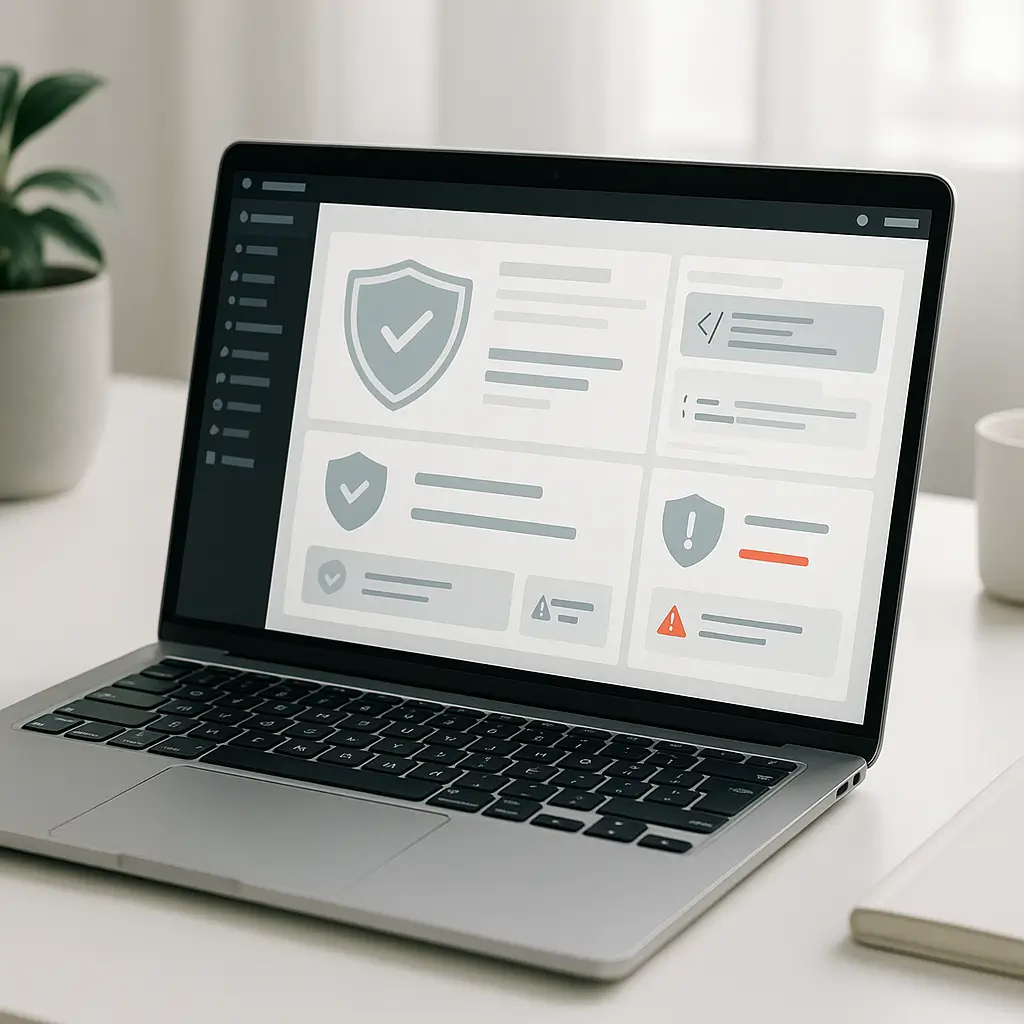
A WordPress vulnerability scan is like checking your doors and windows before someone else does. It looks for known weaknesses in your WordPress core, plugins, themes, server settings, and sometimes even your public-facing pages.
It does not magically make a site secure on its own. A scan is a warning system. The real protection comes from what you do after the scan finds something.
What WordPress Vulnerability Scanning Actually Means
Vulnerability scanning is the process of checking your website against known security issues. These issues might affect WordPress itself, a plugin, a theme, a hosting configuration, or a piece of code used by your site.
For example, if a contact form plugin has a known security flaw, a scanner may detect that your site is using the affected plugin. It can then flag the issue so you can update, replace, disable, or investigate it.
That is different from malware scanning. Malware scanning looks for signs your site may already be infected. Vulnerability scanning looks for weaknesses that could be used to break in.
Both matter, but they answer different questions:
- Vulnerability scanning: “What could be exploited?”
- Malware scanning: “Has something already gone wrong?”
- Security monitoring: “Is anything suspicious happening right now?”
If you want a broader look at ongoing protection, see our guide on WordPress Security Monitoring: Why You Need It.
How a Scanner Knows What to Look For
Most WordPress vulnerability scanners rely on security databases. These databases track known issues reported by researchers, plugin developers, theme developers, hosting providers, and the broader security community.
When a vulnerability is confirmed, it is usually documented with details such as:
- Which plugin, theme, or software component is affected
- Which versions are believed to be vulnerable
- How serious the issue is
- Whether attackers are actively exploiting it
- Whether an update or patch is available
The scanner compares your site against that information. If your site is running a plugin version that matches a known vulnerable release, it raises an alert.
This is why keeping plugins updated matters so much. Many WordPress hacks do not involve clever guessing or movie-style hacking. They involve bots looking for sites running outdated, vulnerable software. We explain that pattern in more detail here: How Hackers Exploit Outdated WordPress Plugins.
The Main Types of WordPress Vulnerability Scans
Not all scans work the same way. Some only look at what is visible from the outside. Others log into WordPress or scan files directly on the server.
1. External Scans
An external scan checks your website from the public internet. It sees what a visitor, bot, or attacker might see without logging in.
External scans may look for things like:
- Exposed WordPress version clues
- Publicly visible plugin or theme assets
- Missing HTTPS or SSL problems
- Suspicious redirects
- Security headers that are missing or misconfigured
- Known vulnerable scripts visible on the front end
External scans are useful because they show what your public attack surface looks like. They are also limited because they cannot always confirm what is installed behind the scenes.
A scanner might detect that a plugin folder appears to exist, but it may not know whether the plugin is active, patched, customized, or blocked by another security layer.
2. Authenticated WordPress Scans
An authenticated scan connects to your WordPress admin area or uses a trusted integration. This gives the scanner better visibility into installed plugins, themes, WordPress core status, user accounts, and configuration details.
This kind of scan is usually more accurate than a public scan. It can often see exact plugin and theme versions instead of guessing based on public files.
The tradeoff is that you are giving a security tool privileged access. That can be fine if the provider is reputable, but you should not connect random scanners to your live site just because they promise a free report.
Tip: If a scanner needs admin-level access, use a dedicated account with only the permissions it actually needs. Remove access if you stop using the tool.
3. Server-Side Scans
A server-side scan checks files and activity from inside the hosting environment. This is where hosting security tools can be helpful because they can inspect things a normal external scanner cannot see.
Server-side tools may look for:
- Known malware signatures
- Suspicious file changes
- Dangerous scripts uploaded into unexpected locations
- Unusual permissions
- Outbound spam or malicious traffic patterns
- Brute force or bot activity
At Ambrite, our cloud hosting includes Imunify360 as part of the hosting stack. It helps provide server-level malware detection, firewall protection, and other security layers. If you want to understand that layer better, read How Imunify360 Protects Your Website.
What a Vulnerability Scan Usually Checks
A good scan looks at more than one thing. WordPress security problems usually come from a combination of outdated software, weak access controls, poor hosting configuration, and missing maintenance.
WordPress Core
WordPress core is the main software that powers your site. Vulnerabilities in WordPress core are taken seriously, and security releases should be applied quickly.
For most small business sites, keeping WordPress core updated is one of the simplest wins. The risk comes when updates are ignored for long periods, especially on sites with many plugins or custom code.
Plugins
Plugins are one of the most common sources of WordPress vulnerabilities. That does not mean plugins are bad. It means every plugin adds code, and every piece of code needs maintenance.
A scanner may flag plugins that are:
- Known to have a security flaw
- Abandoned or no longer maintained
- Outdated compared to the current release
- Removed from the official WordPress plugin directory
- Using risky functionality, depending on the tool
Do not panic every time a plugin is listed as outdated. Some updates are minor. Others are urgent security fixes. The key is knowing the difference and acting quickly when the issue is serious.
Themes
Themes can have vulnerabilities too, especially complex themes that include page builders, bundled plugins, sliders, custom post types, or old libraries.
Many business owners forget about inactive themes. If you are not using a theme, remove it unless you need it as a parent theme for your active child theme. Fewer unused files means fewer things to monitor.
User Accounts
Some scanners check for weak user-related risks. They may flag admin usernames that are easy to guess, accounts that have not been used in a long time, or too many users with administrator access.
This matters because not every WordPress compromise starts with a plugin flaw. Some start with a stolen password or an old staff account that nobody remembered to remove.
SSL and HTTPS
A vulnerability scan may check whether your site uses HTTPS properly. It may also look for insecure mixed content, expired certificates, or weak redirects from HTTP to HTTPS.
For Canadian businesses collecting contact form details, appointment requests, quote requests, or customer information, HTTPS is not optional in practice. It helps protect data in transit and supports visitor trust.
Security Headers
Some scans check for browser security headers. These headers help reduce certain risks, such as clickjacking, content injection, or accidental exposure of browser features.
Not every missing header is an emergency. Some headers need careful configuration because overly strict settings can break scripts, fonts, maps, embeds, or payment tools. Treat these findings as tuning opportunities, not automatic disasters.
File Permissions and Unexpected Files
Server-side tools may look for risky file permissions or unexpected scripts. Loose permissions can make it easier for malware to write or modify files if another weakness is exploited.
This is not usually something a business owner should adjust by guessing. Incorrect permissions can break uploads, updates, backups, caching, or plugin behaviour.
Severity: Not Every Alert Deserves the Same Reaction
One of the biggest mistakes is treating every scan result as equally urgent. That leads to panic, bad updates, and sometimes broken websites.
A practical response is to sort findings into priority levels:
- Critical: Known active exploitation, public attack path, no login required, or sensitive data at risk
- High: Serious vulnerability, especially in an active plugin or theme
- Medium: Needs attention, but may require certain permissions or conditions to exploit
- Low: Hardening suggestion, informational warning, or configuration improvement
If your WooCommerce store, medical practice site, law firm site, or booking website handles personal information, raise the priority. A small vulnerability can become a bigger business problem when client, patient, or customer data is involved.
For Canadian organizations, privacy responsibilities under PIPEDA may apply when personal information is collected, used, or stored. A vulnerability scan is not a full privacy compliance program, but it can help identify technical risks that affect privacy protection.
What Happens After a Vulnerability Is Found
The scan is only step one. The response process matters more.
Here is a sensible workflow:
- Confirm the finding. Check whether the plugin, theme, or component is actually active and affected.
- Check for a safe update. If a patched version is available, review compatibility before applying it.
- Back up the site first. Never make security changes without a reliable backup.
- Use staging for risky updates. Test major plugin, theme, WooCommerce, or page builder changes before pushing live.
- Patch or remove the risk. Update, replace, disable, or delete the vulnerable component.
- Rescan. Confirm the issue is resolved.
- Watch for signs of compromise. If the vulnerability was severe or actively exploited, check logs, files, users, redirects, and malware scan results.
If the issue affects an e-commerce checkout, booking form, intake form, or lead form, test those features after patching. Security updates are necessary, but broken revenue paths are still a real problem.
False Positives and False Negatives
Scanners are useful, but they are not perfect.
A false positive happens when a scanner warns about something that is not actually a problem. For example, it may think a plugin is present because it sees an old public asset, even though the active plugin has already been removed or patched.
A false negative is more dangerous. That means the scanner misses a real issue. This can happen when a vulnerability is new, not yet in the scanner’s database, hidden behind custom code, or not detectable from the scan method being used.
This is why vulnerability scanning should be part of a layered approach, not the entire security plan.
How Often Should You Scan a WordPress Site?
For most small business WordPress sites, vulnerability scanning should happen at least weekly. For higher-risk sites, daily scanning is better.
Higher-risk sites include:
- WooCommerce stores
- Membership sites
- Healthcare, legal, financial, or professional service websites
- Sites with appointment booking or intake forms
- Sites with many plugins
- Sites managed by multiple staff or contractors
You should also scan after major changes. That includes installing a new plugin, changing themes, launching a redesign, moving hosts, restoring from backup, or adding payment, booking, or form functionality.
At Ambrite, daily updates, backups, malware scanning, uptime monitoring, and security monitoring are part of ongoing WordPress care. Our WordPress maintenance and security plans start from $49 CAD/month and are built for small businesses that do not want to babysit updates, backups, and security alerts themselves.
When Not to Rely on Automated Scanning Alone
Automated scanning is great for known issues. It is weaker when the risk is custom, business-specific, or logic-based.
Do not rely only on automated scans when:
- Your site has custom plugin or theme development
- You collect sensitive personal information
- You process payments or connect to payment gateways
- You have staff portals, client portals, or private document areas
- You recently recovered from a hack
- You see unexplained redirects, spam pages, or strange admin users
In those cases, you may need manual review from someone who understands WordPress, hosting, logs, permissions, and common attack patterns.
Also, do not run aggressive third-party scans against a live site during peak business hours unless you know what the tool does. Some scanners are gentle. Others can generate a lot of requests and may trigger firewall rules or slow down a busy site.
What Business Owners Should Look for in a Vulnerability Scanning Setup
You do not need to become a security analyst. But you should know what a decent setup includes.
Look for these basics:
- Regular scheduled scans, not just one-time reports
- Plugin, theme, and WordPress core checks
- Server-level malware and firewall protection
- Clear severity ratings so you know what is urgent
- Human review for important alerts
- Backups before updates
- Staging support for risky changes
- Post-update testing for forms, checkout, booking, and key pages
The “human review” part is easy to underestimate. A dashboard full of red warnings does not help much if nobody knows which ones matter.
Hosting Still Matters
A vulnerability scanner can warn you about risky software, but your hosting environment affects how well your site is protected when something goes wrong.
Good hosting should provide isolation between accounts, current server software, malware detection, firewall protection, reliable backups, and performance that does not collapse under normal traffic.
Ambrite’s cloud web hosting starts at $7.99/month CAD and uses LiteSpeed, NVMe SSD storage, and Imunify360. That does not replace WordPress maintenance, but it gives your site a stronger foundation than bargain-bin hosting with weak security controls.
Simple Actions You Can Take This Week
If you are not sure whether your WordPress site is being scanned properly, start with a few practical checks.
- Log in and check whether WordPress core, plugins, and themes have pending updates.
- Remove plugins and themes you no longer use.
- Make sure backups are running and can actually be restored.
- Check who has administrator access and remove old accounts.
- Enable two-factor authentication for admin users.
- Confirm your site uses HTTPS on every page.
- Ask your host or maintenance provider what scanning tools are active.
- Ask who reviews alerts and how quickly critical issues are handled.
If nobody can answer those last two questions, that is the gap to fix.
What a Good Vulnerability Report Should Tell You
A useful report should not just say “your site is insecure.” That is not helpful.
It should tell you:
- What was found
- Where it was found
- How serious it is
- Whether a fix is available
- What action is recommended
- Whether the issue was resolved after action was taken
For a business owner, the best report is short, clear, and decision-focused. You should not need to decode a wall of technical warnings to know whether your site needs urgent attention.
Need Help Reviewing Your WordPress Security?
If you want a second set of eyes on your WordPress site, Ambrite can help with hosting, maintenance, security monitoring, malware cleanup, updates, backups, and practical security improvements.
You can reach us through our contact page if you are unsure whether your current setup is enough. We will give you a straight answer, including whether you need ongoing help or just a few specific fixes.
This article was written with the help of AI and reviewed by Ambrite. Pricing, features, and technical details may change. Always verify with official sources before making decisions.
Was this article useful?
Related Articles
Your website collects personal information from visitors (even just their IP address counts)....
Two-factor authentication (2FA) is like adding a deadbolt to your WordPress admin door, and in...
That outdated WooCommerce shipping plugin you've been meaning to update? It's probably already...
Your website just got hacked. The sinking feeling in your stomach is real, and it should be. A...
Your law firm's website handles sensitive client data every single day. One security breach...
