
Blog
WordPress Staging Environments Explained
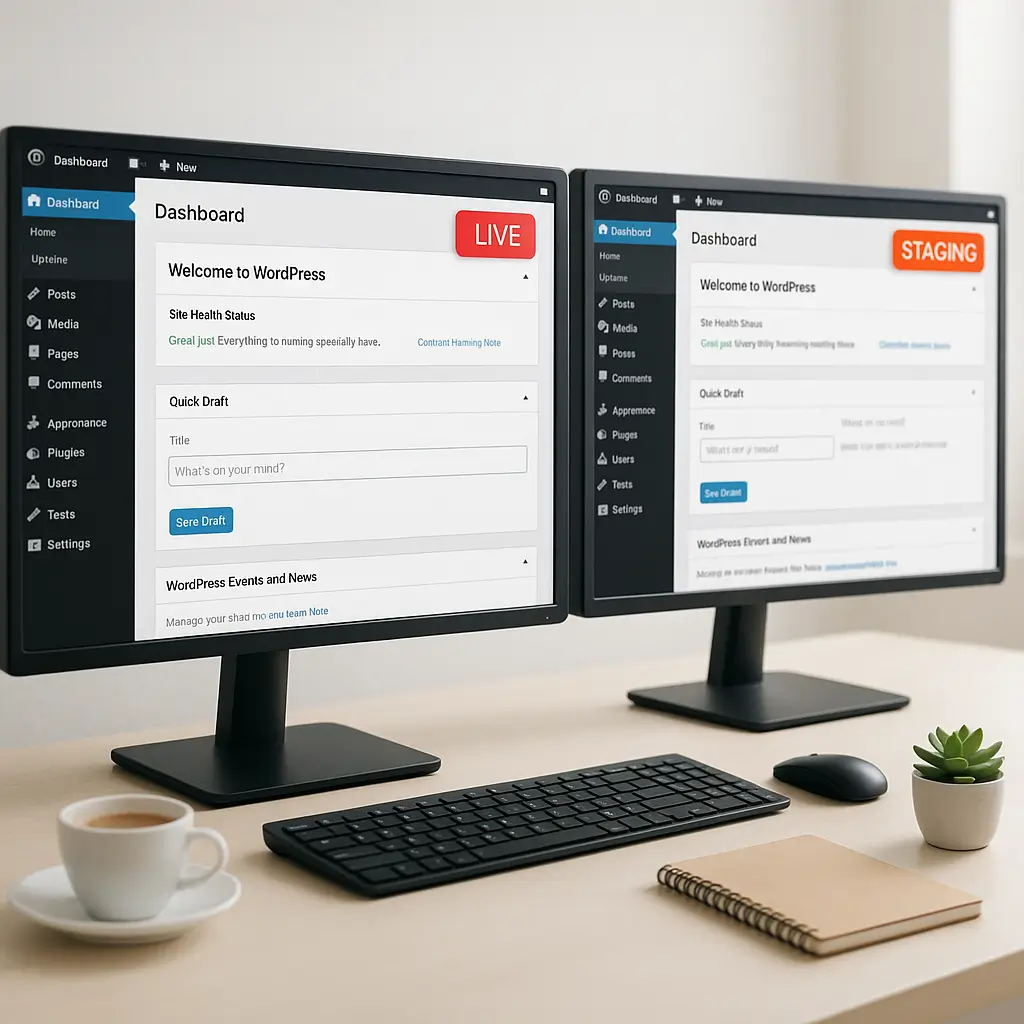 Ever wondered how professional developers test major WordPress updates without breaking their live sites? The secret weapon is staging environments—and once you understand how they work, you'll never push another untested update directly to production again.
A staging environment is essentially a carbon copy of your live WordPress site that exists in a separate, hidden location. Think of it as your website's practice arena where you can experiment, test updates, and break things without any consequences. While your visitors continue browsing your actual site, you're free to wreak havoc on your staging copy.
Why Staging Environments Matter More Than Ever
WordPress updates come fast and furious. Between core updates, theme patches, and plugin releases, you might see a dozen update notifications in a single month. Each one carries risk—especially if you're running WooCommerce, complex forms, or custom functionality.
Here's what can go wrong without staging:
- Plugin conflicts that break your checkout process
- Theme updates that scramble your layout
- PHP version incompatibilities that white-screen your site
- Database changes that corrupt your content
- Security patches that conflict with custom code
I've seen law firms lose contact forms during business hours, restaurants have their online ordering crash during dinner rush, and medical practices unable to book appointments—all from "minor" updates gone wrong.
Real-world example: A Toronto real estate agent updated their IDX plugin directly on production. The update had a conflict with their theme, breaking every property listing page. They lost an entire weekend of leads before getting it fixed.
How Staging Environments Actually Work
A staging environment duplicates three key components of your WordPress site:
1. Files: All your WordPress core files, themes, plugins, uploads, and custom code get copied to a separate directory or subdomain.
2. Database: Your entire WordPress database gets cloned, including posts, pages, settings, and user data.
3. Configuration: The staging site uses modified configuration files that point to the staging database and URLs instead of your live site.
The staging site typically lives at a URL like staging.yourdomain.ca or yourdomain.ca/staging. Most importantly, it's hidden from search engines and regular visitors through password protection or IP restrictions.
Types of Staging Environments
Not all staging setups are created equal. Here are the main approaches:
Subdomain Staging
Your staging site lives at staging.yourdomain.ca. This is the cleanest approach since it's completely separate from your production site. The downside? You need SSL certificates for the subdomain and proper DNS configuration.
Subdirectory Staging
The staging site exists at yourdomain.ca/staging. Easier to set up but can get messy with permalink structures and requires careful .htaccess management to prevent conflicts.
Local Staging
You run the staging site on your own computer using tools like Local, XAMPP, or Docker. Great for development but doesn't replicate your actual hosting environment, which can lead to "works on my machine" syndrome.
Separate Server Staging
The gold standard—your staging site runs on a completely separate server or hosting account. More expensive but eliminates any risk of staging affecting production performance.
Setting Up Your First Staging Environment
The setup process varies wildly depending on your host. Some providers like WP Engine and Kinsta include one-click staging. Others require manual setup or plugins.
Host-Provided Staging (The Easy Way)
Many managed WordPress hosts now include staging environments. Check your hosting control panel for options like "Create Staging Site" or "Clone to Staging." These typically handle all the technical details automatically.
At Ambrite, our WordPress maintenance plans include staging environment setup and management, so you don't have to wrestle with the technical side.
Plugin-Based Staging
For hosts without built-in staging, plugins like WP Stagecoach, BlogVault, or WP Staging can create staging environments. Each has different approaches—some clone locally, others use their cloud infrastructure.
The catch with plugins? They add overhead to your site and may conflict with security plugins or caching systems. Always test thoroughly.
Manual Staging Setup
For the technically inclined, manual setup gives you complete control. The basic process involves:
- Creating a subdomain or subdirectory
- Copying all WordPress files
- Exporting and importing the database
- Updating wp-config.php with new database credentials
- Running search-replace on the database to update URLs
- Setting up authentication to keep it private
Fair warning: manual setup is prone to errors, especially the database URL replacement step. One wrong move and you'll have broken images or redirect loops.
Staging Best Practices That Actually Matter
Having a staging site is only half the battle. Using it effectively requires discipline and good habits.
Keep Staging and Production in Sync
Your staging site is only useful if it matches production. Before testing updates, refresh your staging site with the latest content and settings from production. Otherwise, you're testing against outdated data.
How often to sync depends on your site. E-commerce sites with frequent orders might need weekly syncs. Corporate sites with occasional blog posts might sync monthly.
Test Everything, Not Just Updates
Don't limit staging to plugin updates. Use it for:
- Design changes and new layouts
- Content experiments
- New plugin installations
- Performance optimizations
- Security hardening measures
- PHP version upgrades
Document Your Testing Process
Create a simple checklist for staging tests. At minimum, verify:
- Homepage loads correctly
- Navigation menus work
- Contact forms submit properly
- Shopping cart and checkout function (for e-commerce)
- Mobile responsiveness
- Admin area accessibility
- Any custom functionality specific to your site
Pro tip: Take screenshots before and after updates. When something breaks, visual comparisons help identify exactly what changed.
Common Staging Environment Pitfalls
Even with the best intentions, staging environments can trip you up. Here are the gotchas I see most often:
Email Notifications Going to Real Customers
Your staging site has real customer data, including email addresses. Without proper configuration, test orders or form submissions might email actual customers. Always disable email sending or redirect all emails to your address.
Search Engines Indexing Your Staging Site
Google discovering your staging site creates duplicate content issues and confuses visitors. Use password protection, robots.txt blocking, and noindex tags as triple protection.
Payment Gateways Processing Real Transactions
Staging sites with WooCommerce or other e-commerce plugins need payment gateways in test mode. Forgetting this step could charge real credit cards during testing.
Database Sync Destroying Fresh Content
The classic mistake: spending hours perfecting content on staging, then overwriting it by syncing from production. Always sync production to staging, not the reverse, unless you're specifically pushing tested changes live.
When Staging Environments Aren't Enough
Staging environments solve many problems but have limitations:
Traffic Testing: Staging can't replicate real-world traffic patterns. A plugin might work fine in staging but crash under Black Friday load.
Third-Party Services: APIs, CDNs, and external services often behave differently in staging versus production environments.
User Behavior: You can't test how actual users interact with changes. What seems logical to you might confuse visitors.
For these scenarios, consider additional tools like load testing services, feature flags for gradual rollouts, or A/B testing platforms.
Staging Workflows for Different Business Types
Your staging strategy should match your business needs and risk tolerance.
E-commerce Sites
With money on the line, e-commerce sites need robust staging workflows. Test every update that could affect the purchase process. Pay special attention to:
- Payment gateway updates
- Shipping calculator changes
- Tax calculation modifications
- Checkout flow updates
Consider maintaining two staging environments: one for routine updates and another for major WooCommerce version upgrades. Our guide on WooCommerce staging best practices dives deeper into e-commerce-specific considerations.
Professional Service Sites
Law firms, medical practices, and consultants can't afford contact form failures. Focus staging tests on:
- Appointment booking systems
- Contact form functionality
- Client portal access
- Document download areas
For law firms especially, maintaining client confidentiality during staging is crucial. Check out our article on WordPress SSL for law firm client confidentiality.
Restaurant and Hospitality Sites
Timing matters for restaurants. Never test updates during peak hours, even on staging, if they share server resources. Priority testing areas include:
- Online ordering systems
- Reservation platforms
- Menu display functionality
- Hours and location information
Advanced Staging Techniques
Once you're comfortable with basic staging, these advanced techniques can level up your workflow:
Git-Based Deployments
Version control integration lets you track every change between staging and production. You can roll back problematic updates instantly and maintain a complete history of what changed when.
Automated Testing
Tools like Ghost Inspector or Selenium can automatically test critical site functions after each staging update. Set up tests for your most important user paths and get alerts if anything breaks.
Database Anonymization
For extra security, anonymize customer data when copying to staging. Replace real names, emails, and addresses with fake data while maintaining the database structure for accurate testing.
Multi-Stage Environments
Larger organizations might use multiple staging environments:
- Development: For active coding work
- Staging: For testing and client approval
- Pre-production: Final testing with production-identical setup
- Production: The live site
Making the Staging Decision
Not every WordPress site needs elaborate staging setups. Here's how to decide:
You absolutely need staging if:
- You process payments online
- Downtime costs you money or reputation
- You run complex plugins or custom code
- Multiple people update your site
- You're subject to regulatory compliance (PIPEDA, PHIPA, etc.)
You can probably skip staging if:
- You run a simple blog with minimal plugins
- You only update during off-hours
- You have good backups and can restore quickly
- Temporary issues won't damage your business
Even if you fall into the second category, consider that staging environments cost very little compared to the potential damage from a bad update. Most professional maintenance plans include staging as a standard feature.
The Real Cost of Not Using Staging
Let me paint a picture from real client experiences:
A Calgary plumbing company updated their booking plugin directly on production during business hours. The update had a conflict with their theme's JavaScript, breaking the entire booking system. They lost a full day of appointment requests before realizing the problem—roughly $3,000 in potential revenue.
A Vancouver law firm pushed a security plugin update that conflicted with their contact form encryption. Client inquiries containing sensitive information bounced for 48 hours. Beyond lost leads, they faced potential PIPEDA compliance issues.
These aren't edge cases. Without staging, you're one update away from similar disasters.
Getting Started with Staging Today
If you're convinced staging is worth it (and you should be), here's how to get started:
Option 1: Check if your current host offers staging features. Many quality WordPress hosts now include one-click staging at no extra cost.
Option 2: Investigate staging plugins compatible with your setup. Start with a free option to test the workflow before investing in premium solutions.
Option 3: Consider managed maintenance that includes staging. This removes the technical burden while ensuring professional update testing.
Remember, staging environments are like insurance—you hope you never need them, but when something goes wrong, you're incredibly grateful they exist. The question isn't whether you can afford to use staging. It's whether you can afford not to.
Start small if needed. Even a basic local staging setup beats pushing updates blindly to production. As your site grows and becomes more critical to your business, invest in more sophisticated staging workflows. Your future self (and your visitors) will thank you.
This article was written with the help of AI and reviewed by the Ambrite team. Pricing, features, and technical details may change — always verify with official sources before making decisions.
Was this article useful?
Related Articles
Your WordPress site loads in 8 seconds on mobile. Meanwhile, your competitor's site loads in 2...
Running a restaurant in 2026 means juggling a thousand things at once. Your WordPress site...
Your WordPress site has 47 active plugins and takes 8 seconds to load. Sound familiar? Plugin...
Your real estate website is more than just a digital business card—it's a 24/7 sales machine...
Your staff page hasn't been updated since Jessica left in 2022, and your services page still...
