
Blog
How to Test WordPress Backups (and Why You Should)
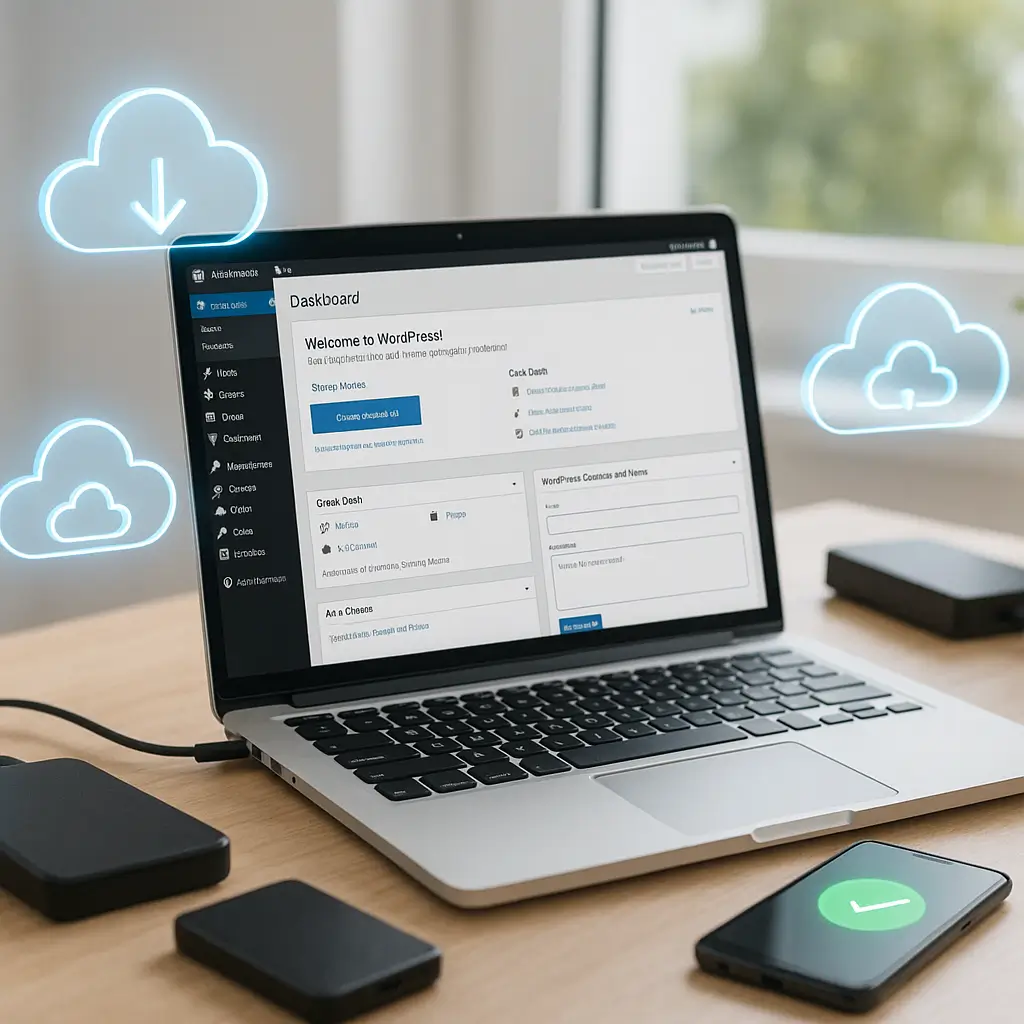
Ever had that sinking feeling when your WordPress site crashes and you realize your last backup is from... wait, when did you last back it up? You're not alone. Most site owners only discover their backups don't work when they desperately need them.
Here's the uncomfortable truth: about 30% of WordPress backups fail silently. They look fine sitting there in your hosting panel or backup plugin, but when disaster strikes, they're corrupted, incomplete, or just plain broken. Testing your backups isn't paranoid. It's smart business.
Why Most WordPress Backups Fail (And You Won't Know Until It's Too Late)
WordPress backups fail for surprisingly mundane reasons. Your hosting account runs out of space mid-backup. The backup process times out on a large database. File permissions block access to certain folders. Plugin conflicts interrupt the process.
The worst part? Most backup plugins will happily report "Backup Complete!" even when half your files are missing. They're designed to keep running, not to verify everything actually worked.
I've seen business owners lose months of content updates because their "daily backups" were only capturing the database, not the media files. Others discovered their backups were saving to the same server, which doesn't help much when the entire server crashes.
The Three Types of WordPress Backups You Need to Test
Not all backups are created equal. Understanding what you're backing up (and what you're not) is the first step to proper testing.
1. Database Backups
Your database contains all your posts, pages, comments, user data, and most plugin settings. It's the brain of your WordPress site. But a database-only backup won't include your theme files, plugins, or uploaded images.
Database backups are small and fast, which is why many hosting providers only offer these as their "free backup" option. They're better than nothing, but they're not enough.
2. File Backups
File backups capture your WordPress core files, themes, plugins, and uploads folder. This includes all your images, PDFs, and other media. Without these, restoring just your database gives you a broken site full of missing images and non-functional features.
The challenge with file backups is size. A typical small business site might have 5-10GB of files, mostly in the uploads folder. WooCommerce stores can be even larger with product images and downloadable files.
3. Full Site Backups
A complete backup includes both your database and all files. This is what you actually need to restore a dead site. But here's where it gets tricky: many backup solutions store these as separate components that need to be restored in the right order.
How to Test Your WordPress Backups (The Right Way)
Testing backups doesn't mean clicking "restore" on your live site and hoping for the best. That's a recipe for disaster. Here's how to actually verify your backups work without risking your production site.
Method 1: The Staging Site Test
The safest way to test backups is on a staging site, essentially a clone of your live site where you can break things without consequences.
Create a subdomain like staging.yoursite.ca or test.yoursite.ca. Most quality hosting providers include staging functionality. Install a fresh WordPress instance there, then try restoring your backup.
What to check after restoration:
- Can you log into wp-admin with your usual credentials?
- Are all your pages and posts present?
- Do images load correctly, or are they broken?
- Do your forms still work?
- Are your plugins active and configured properly?
- Does your theme look right, including customizations?
If you run WooCommerce, also verify that products display correctly, payment gateways are configured, and test orders process properly.
Method 2: The Local Development Test
For the more technical folks, testing on your local computer gives you complete control. Tools like Local by Flywheel or XAMPP let you run WordPress on your own machine.
Download your backup files and database export. Import them into your local environment. This method is particularly useful for testing older backups: you can verify that backup from six months ago without affecting anything online.
The downside? Local testing won't catch server-specific issues like file permission problems or PHP version conflicts.
Method 3: The Selective Restoration Test
Sometimes you just need to verify specific components work. Most backup plugins allow partial restorations: perhaps just a single plugin folder or specific database tables.
This is less comprehensive but useful for spot-checking. Restore a single old blog post to draft status. Recover a deleted image to a test folder. These small tests build confidence without the complexity of full restoration.
Creating a Backup Testing Schedule That Actually Happens
Let's be honest. You're busy running a business. Testing backups feels like homework. But like changing your car's oil, a little prevention saves massive headaches later.
Here's a realistic testing schedule:
Monthly: Verify your automated backups are running. Check file sizes. A sudden drop might indicate incomplete backups. Ensure you have at least 30 days of backup history.
Quarterly: Perform a full restoration test to staging. Pick a random backup from the past month. Document any issues you encounter. This catches problems while your backups are still recent.
Annually: Test your oldest backup. Can you still restore from six months ago? A year ago? This reveals long-term storage issues before they matter.
After Major Changes: Updated WordPress core? Installed a new plugin? Upgraded WooCommerce? Test a backup within 48 hours. Configuration changes are prime time for backup failures.
Red Flags That Your Backups Aren't Actually Working
Watch for these warning signs that suggest your backups need immediate attention:
Backup files are too small: If your site is 5GB but backups are 500MB, something's missing. Database-only backups are typically under 100MB for small sites.
Inconsistent backup sizes: Daily backups should be roughly the same size. Wild fluctuations suggest incomplete captures.
Missing backup notifications: If you usually get email confirmations but they've stopped, investigate immediately.
Can't download backup files: If your backup plugin shows successful backups but downloads fail, the files might be corrupted or stored incorrectly.
Restore process fails partway: Starting restoration is easy. Completing it successfully is what matters.
Common WordPress Backup Testing Mistakes to Avoid
Learning from others' disasters is cheaper than creating your own. Here are the mistakes I see repeatedly:
Testing only recent backups: Your backup from yesterday probably works. But what about the one from three months ago when you still had that old theme? Older backups reveal storage degradation and compatibility issues.
Ignoring database charset issues: WordPress databases use specific character encodings. Restoration failures often stem from charset mismatches, especially on sites with French Canadian content.
Forgetting about external services: Your backup might be perfect, but did you document your CDN settings? Email configuration? Third-party integrations? These aren't in your WordPress backup.
Assuming hosting backups are enough: Many hosts offer "daily backups" that are really just disaster recovery for their infrastructure. They might restore your site from yesterday, but not from last month. And good luck getting them to restore just one accidentally deleted page.
What to Do When Backup Testing Reveals Problems
Found issues during testing? Don't panic. You discovered the problem during a drill, not an emergency. Here's your action plan:
Document everything: Write down exactly what failed, including error messages. Future you will thank present you for these notes.
Fix the root cause: Don't just create a new backup and hope it works. If file permissions caused the failure, fix the permissions. If you're out of storage space, upgrade your plan or clean house.
Test the fix: After addressing issues, immediately create and test a new backup. Verify your solution actually worked.
Update your backup strategy: Maybe you need off-site backups. Perhaps daily isn't frequent enough for your busy WooCommerce store. Adjust your backup frequency based on what you learned.
Advanced Backup Testing for Critical Sites
Running an online store, medical practice website, or legal firm site? Your backup testing needs to level up.
Test Cross-Server Restoration
Can you restore your backup to a completely different hosting environment? This matters when your entire hosting provider has issues. Test restoring to a different host with different PHP versions and server configurations.
Verify Backup Encryption
If you're storing sensitive data (and following PIPEDA compliance requirements), your backups should be encrypted. But can you actually decrypt and restore them? Test this process before you need it.
Check Incremental Backup Chains
Many backup solutions use incremental backups to save space, storing only changes since the last full backup. This is efficient until one link in the chain corrupts. Test restoring from different points in your incremental chain.
Validate Database Integrity
Beyond just restoring, run integrity checks on your recovered database. WordPress database corruption can be subtle. Everything looks fine until someone tries to update a specific post.
When to Bring in Professional Help
Sometimes DIY backup testing reveals complexities beyond your comfort zone. That's normal and nothing to be embarrassed about.
Consider professional help when:
- Your site generates significant revenue and downtime costs real money
- You're handling sensitive customer data requiring regulatory compliance
- Backup tests repeatedly fail for unclear reasons
- You need to implement complex backup strategies across multiple sites
- Time spent managing backups exceeds the cost of managed services
A good WordPress maintenance plan includes regular backups, monitoring, and technical support. The peace of mind often justifies the cost, especially when you factor in the time saved.
Building a Bulletproof Backup Strategy
Testing reveals weaknesses in your backup strategy. Here's how to build something more robust based on common failure points:
Follow the 3-2-1 rule: Keep 3 copies of important data, on 2 different storage types, with 1 copy off-site. For WordPress, this might mean server backups, downloaded local copies, and cloud storage.
Automate everything possible: Manual backups don't happen. Automated backups do. But automation without verification is false security, hence the need for testing.
Document your restoration process: During testing, write down every step needed to restore your site. Include plugin settings, API keys, and any custom configurations. This documentation is as valuable as the backup itself.
Consider managed backup solutions: Quality WordPress hosts include managed backups with automated testing. The cost difference between basic hosting and managed WordPress hosting often pays for itself with the first avoided disaster.
Your Next Steps
Reading about backup testing is step one. Here's what to do right now:
First, check when your last backup ran. Log into your hosting control panel or backup plugin dashboard. Verify you have recent backups available.
Second, download your most recent backup to your computer. If you can't download it, you can't restore it. This simple test catches many issues.
Third, schedule time this week for a proper restoration test. Put it in your calendar. Treat it like a client meeting, because your future clients depend on your site working.
Finally, if testing reveals problems you can't solve, reach out for help. Whether that's your hosting provider, backup plugin support, or a WordPress maintenance professional, addressing issues now prevents emergencies later.
Remember: the best time to test your backups was yesterday. The second best time is today. Your future self (and your business) will thank you for taking this seriously before disaster strikes.
Quick Tip: Set a recurring calendar reminder for backup testing. Monthly reminders for basic checks, quarterly for full tests. The reminder that feels annoying today prevents the crisis that ruins your week tomorrow.
This article was written with the help of AI and reviewed by Ambrite. Pricing, features, and technical details may change. Always verify with official sources before making decisions.
Was this article useful?
Related Articles
Your WordPress site loads in 8 seconds on mobile. Meanwhile, your competitor's site loads in 2...
Running a restaurant in 2026 means juggling a thousand things at once. Your WordPress site...
Your WordPress site has 47 active plugins and takes 8 seconds to load. Sound familiar? Plugin...
Your real estate website is more than just a digital business card: it's a 24/7 sales machine...
Your staff page hasn't been updated since Jessica left in 2022, and your services page still...
